
Guests scan the card on their table and rate their visit in about a minute. Because each card belongs to a table, the rating lands on the party sitting there — with the table, the waiter and the manager on duty filled in by themselves. Setting the cards up is in Put a QR card on every table.
Open Feedback
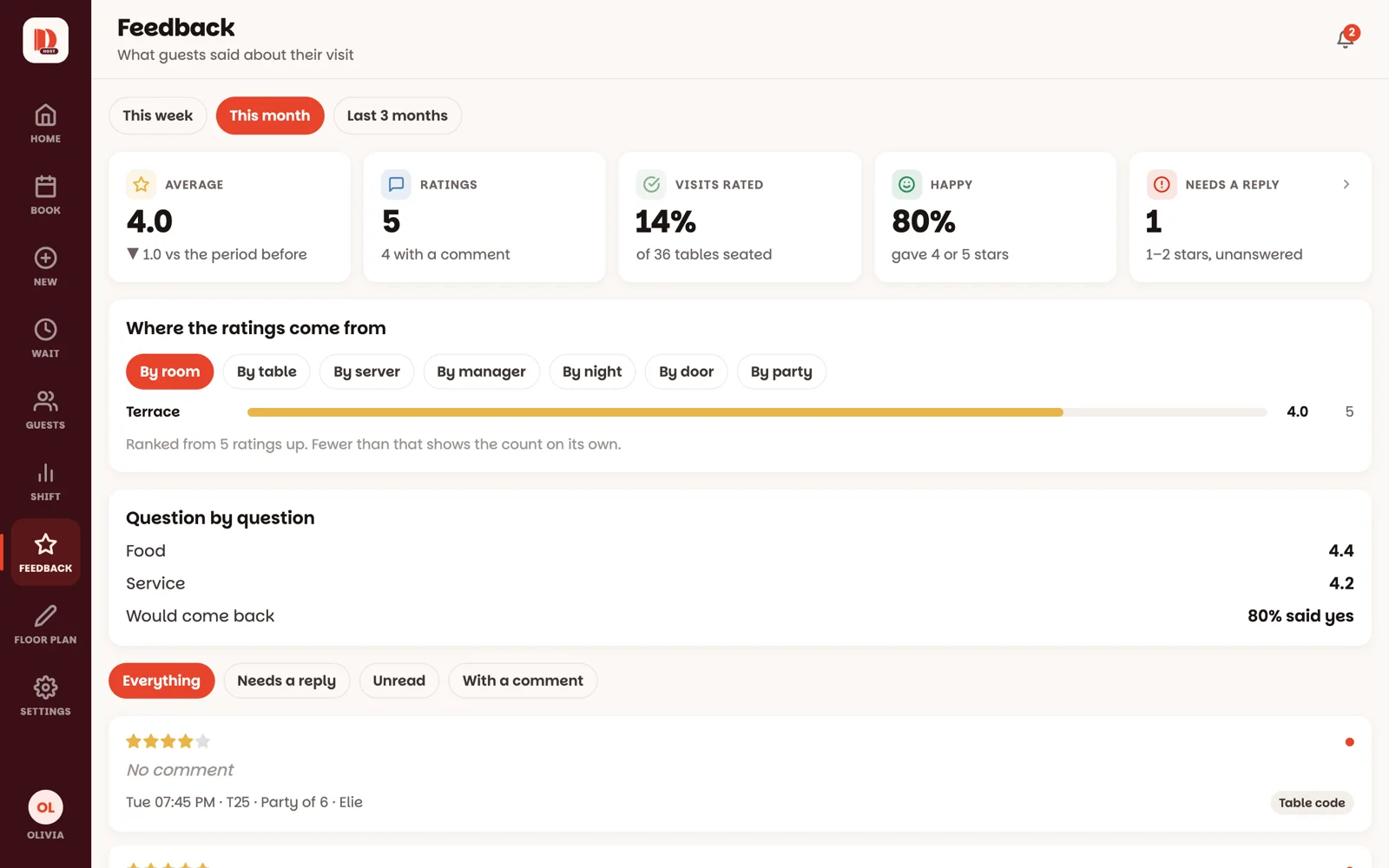
Tap Feedback in the menu (on a phone: More, then Feedback). Pick This week, This month or Last 3 months. Along the top:
- Average — the average stars, and whether it went up or down.
- Ratings — how many, and how many have a comment.
- Visits rated — how many of your tables left a rating.
- Happy — how many gave 4 or 5 stars.
- Needs a reply — 1 or 2 stars that nobody has answered yet. Red when there are any.
See where the ratings come from

The next card breaks the average down By room, By table, By server, By manager, By night and more — so you can see which waiter, which night or which corner of the room needs attention. Under it, Question by question shows how guests answered each question.
Answer the ones that need it
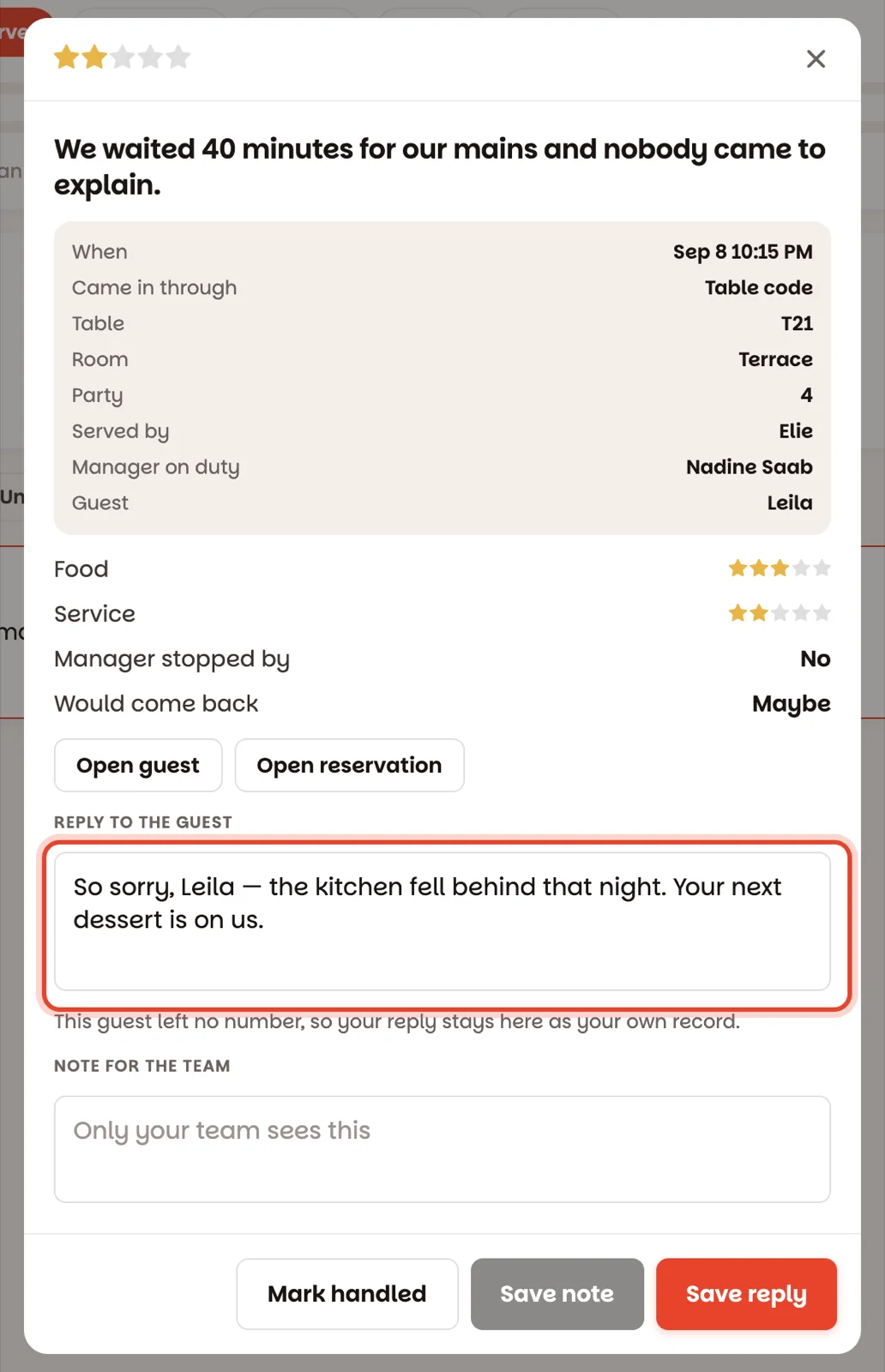
Tap Needs a reply, then tap a rating to open it. You'll see when and where they sat, who served them, and each answer.
- Reply to the guest — type what you'd say. If the guest left their number and said you may contact them, tap Send on WhatsApp: it goes from Dinesty's WhatsApp number with your restaurant's name on it, and Sent on WhatsApp · 7:42 PM appears under it. Otherwise tap Save reply and it's kept here as your record.
- Note for the team — only your team sees it. Save note.
- Mark handled — you've dealt with it, with or without a reply. It leaves Needs a reply.
The bell tells you straight away
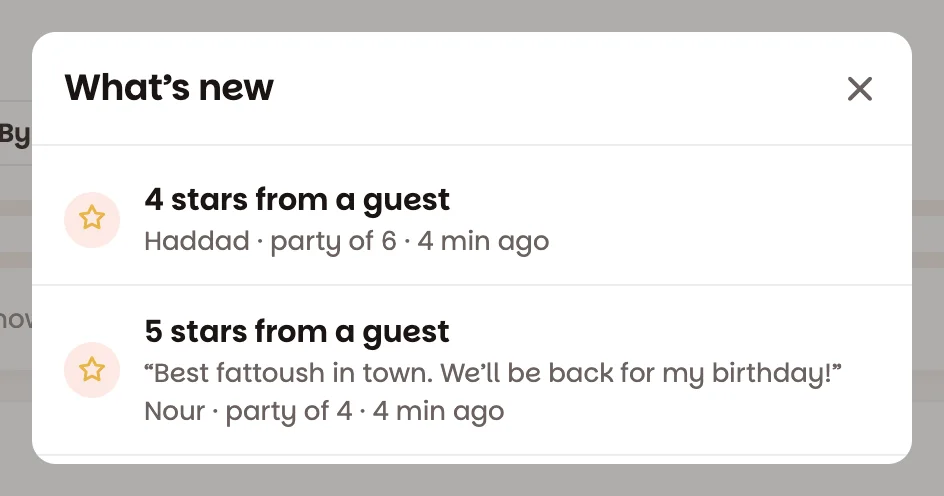
New ratings also appear under the bell at the top of every screen — a low one says 2 stars — needs a reply. Tap it to jump to Feedback.
Good to know
- Ratings are for owners only: managers and staff don't see this screen, the ratings, or those notifications.
- Shift shows tonight's ratings too, as they come in.
- Guests are never asked to review you on Google only when they're happy — the Google button, if you switch it on, is shown to everyone. That's Google's rule.