
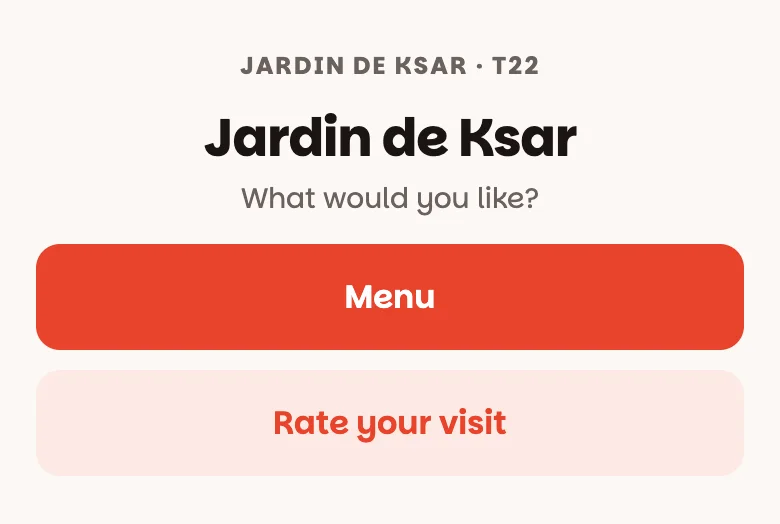
A small card with a QR code on each table. When a guest scans it, their phone shows two buttons: Menu and Rate your visit. Nothing to install, for you or for them.
Before you start: your restaurant's address
The cards use your restaurant's own web address. Set it once: Settings ▸ Online reservations → Reservation address (like jardin-de-ksar) → Save reservation page. Leave Page is live off — the cards don't need it.
Open Settings, then Feedback
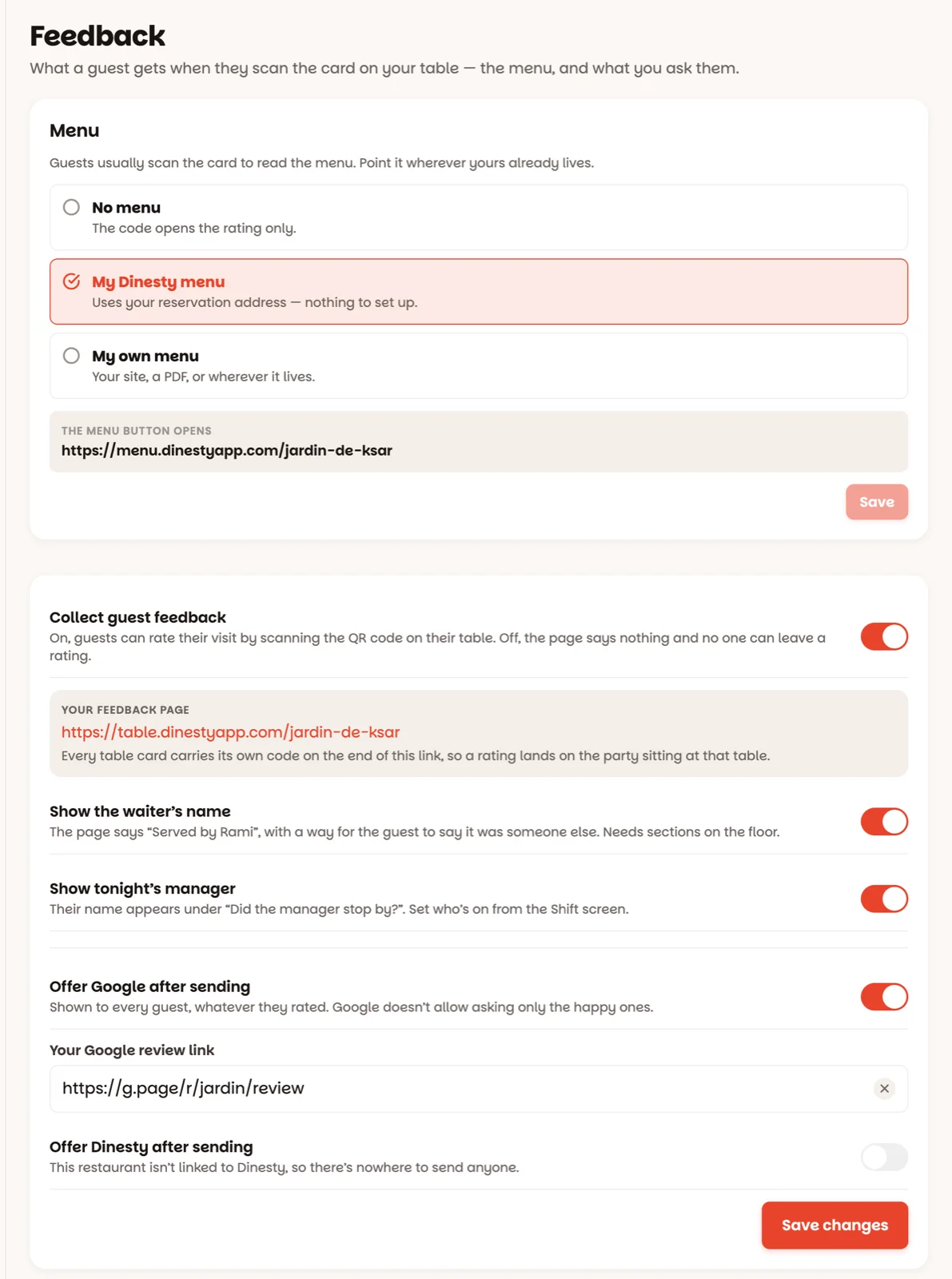
Pick what the Menu button opens:
- My Dinesty menu — your menu on Dinesty. Nothing else to set up.
- My own menu — paste your own link: your website, a PDF, Instagram.
- No menu — the card only asks for a rating.
Tap Save.
Switch on Collect guest feedback
Then choose what the rating page shows:
- Show the waiter's name — the page says Served by Rita, and the guest can say if it was someone else. Needs Tonight's team.
- Show tonight's manager — names the manager on duty under Did the manager stop by?
- Offer Google after sending — a button to post a review on Google, shown to every guest.
Tap Save changes.
Choose what you ask
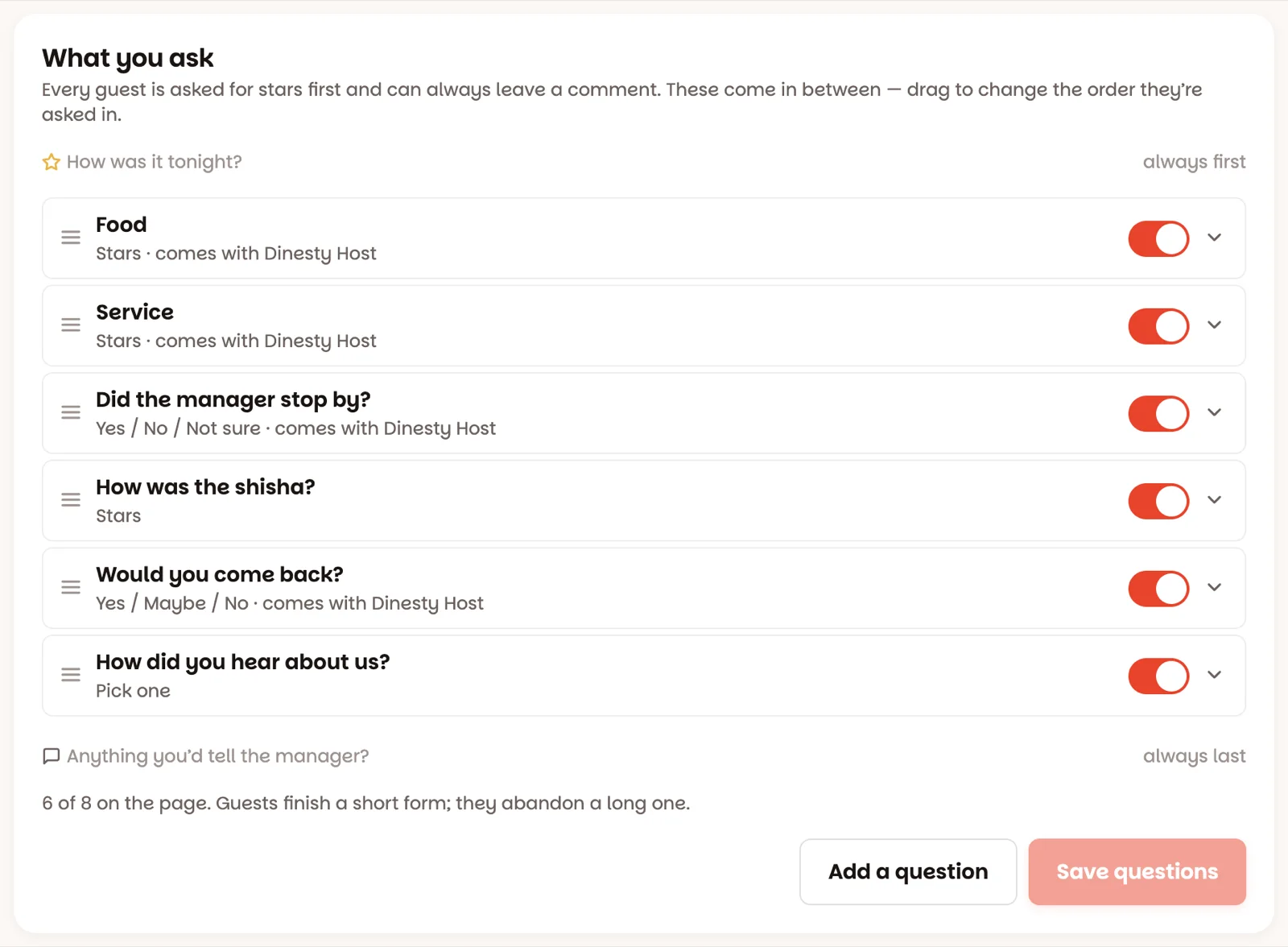
Guests always give stars first and can always leave a comment. In between, you choose the questions — Food, Service, Did the manager stop by?, Would you come back?, or your own ("How was the shisha?"). Switch questions on or off, drag them into order, Add a question, then Save questions. Keep it short: up to 8 questions, and guests finish short forms.
Print the table cards
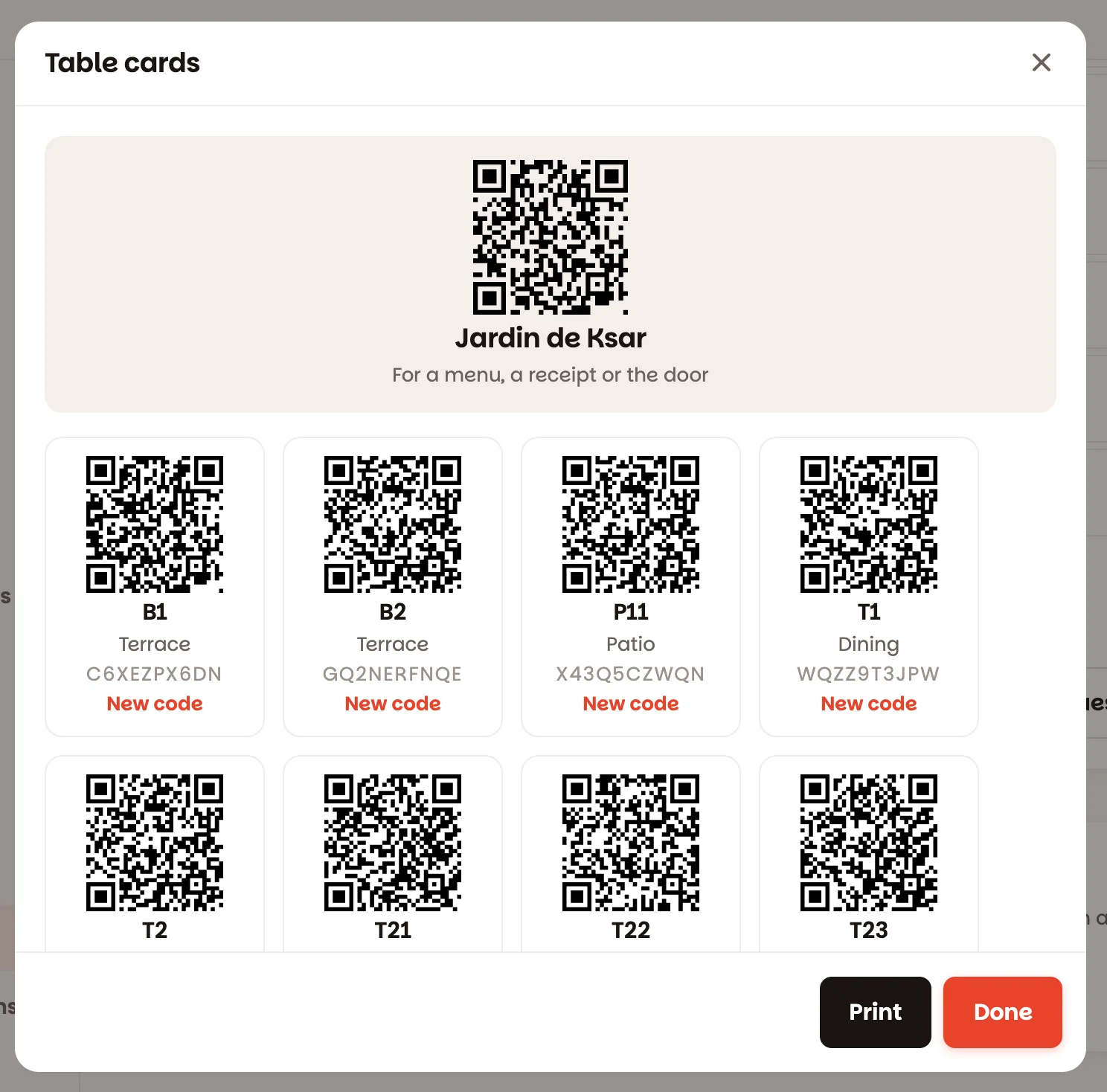
Tap Print table cards. There's one card per table, each with its own code, plus one for the whole restaurant (for the menu, a receipt or the door). Printing works from a computer: open Dinesty Host in the browser, tap Print, cut the cards out, and stand one on every table.
A card went missing? Tap New code under that table — the old card stops working straight away. Print the new one.
What the guest sees
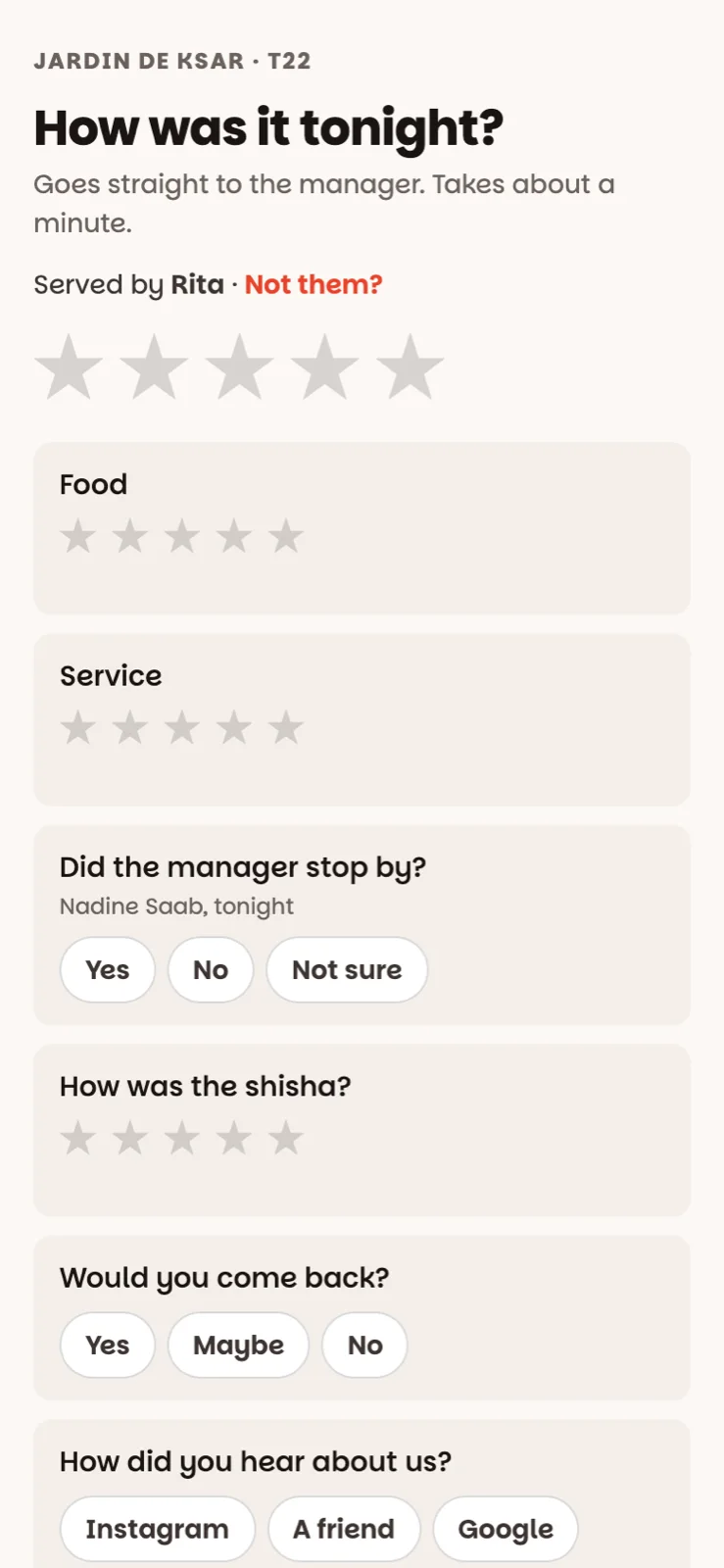
How was it tonight? — stars, your questions, an optional comment and an optional phone number if they'd like you to follow up. It takes about a minute. Their rating arrives in Feedback straight away — see Read what guests said.
Good to know
- Only owners can see and change this.
- The switch here is the same as Settings ▸ Features ▸ Guest feedback — turn it off in either place and the cards stop taking ratings.