
Two settings work together. Opening hours are the doors: when you're open at all. Shifts are what you sell inside them — Lunch, Dinner, a late seating — and only a service takes reservations. Set the hours first, then your services (next guide).
Open Settings, then Opening hours
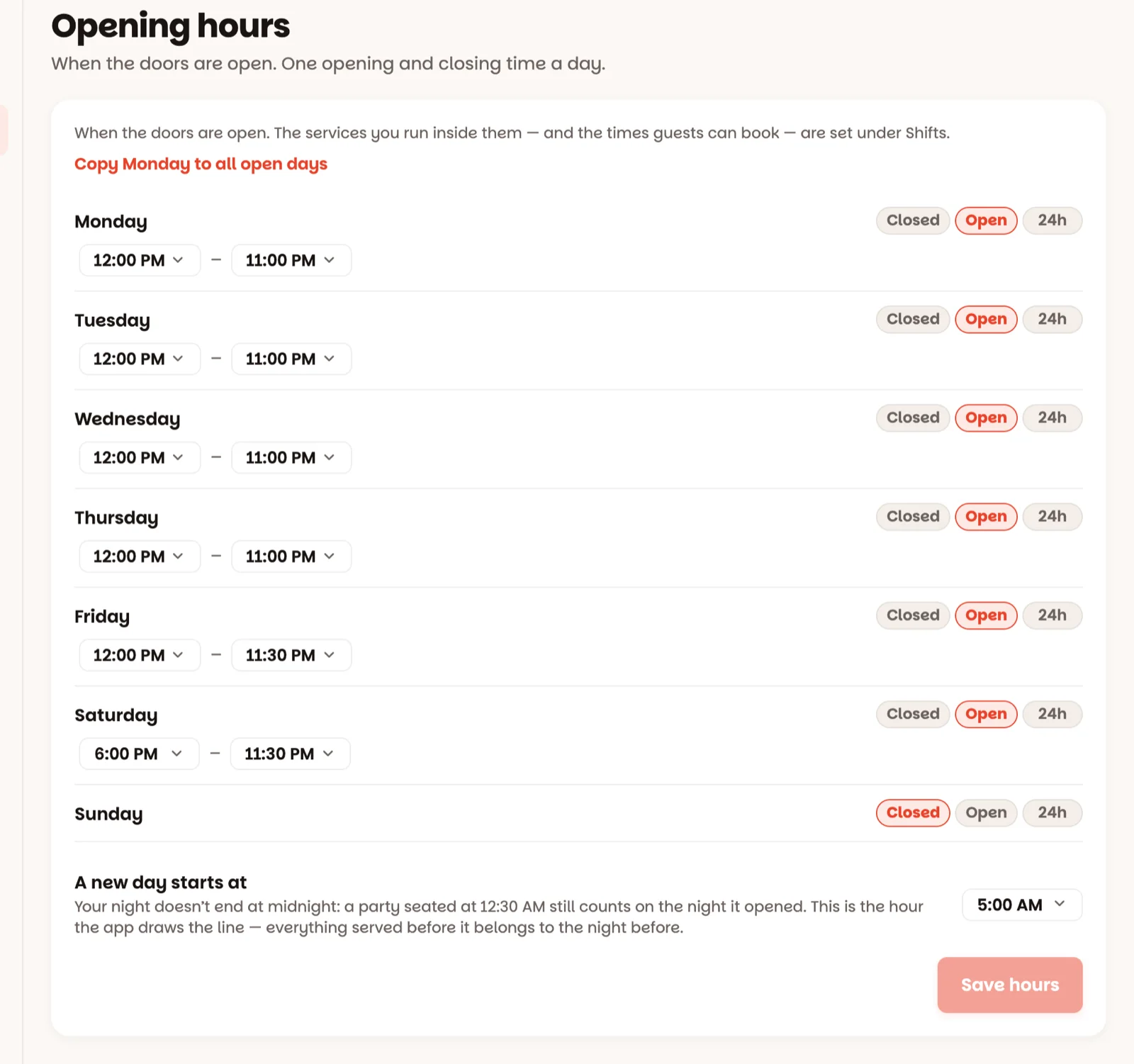
One row per day, Monday to Sunday. Each day is one of three things:
- Closed — no reservations that day.
- Open — pick the opening and closing time.
- 24h — open all day and night.
A closing time earlier than the opening one means the next morning: 6:00 PM to 2:00 AM is one Friday night, not an empty Friday. The row says so: Closes after midnight, the next morning.
Same hours all week?
Copy Monday to all open days (it names your first open day) gives every open day the same hours. Days set to Closed stay closed.
When does a night end?
Under the week is A new day starts at — 5:00 AM out of the box. A party seated at 12:30 AM still counts on the night that opened, not the next morning. This is where you say where that line falls. Hours when you're still serving aren't offered.
Tap Save hours
You'll see Hours saved, and the reservation screen follows straight away.
If a service would end up outside the doors, the save is held and the screen says which one — Monday: Lunch runs to 3:00 PM, past closing. Widen the day, or change the service under Shifts. The two have to agree: it's the services that take reservations.
Good to know
- Walk-ins don't care about hours — you can always seat someone from the floor. Hours only shape reservations.
- Closing for one night — a holiday, a private party — isn't done here. Tap the date at the top of the floor instead (how).
- Staff can see this screen but not change it.