
A service (the app calls them shifts) is a stretch of the day you take reservations for. Between services you're still open for walk-ins — you just don't take reservations then. Most restaurants run two: Lunch and Dinner.
Open Settings, then Shifts
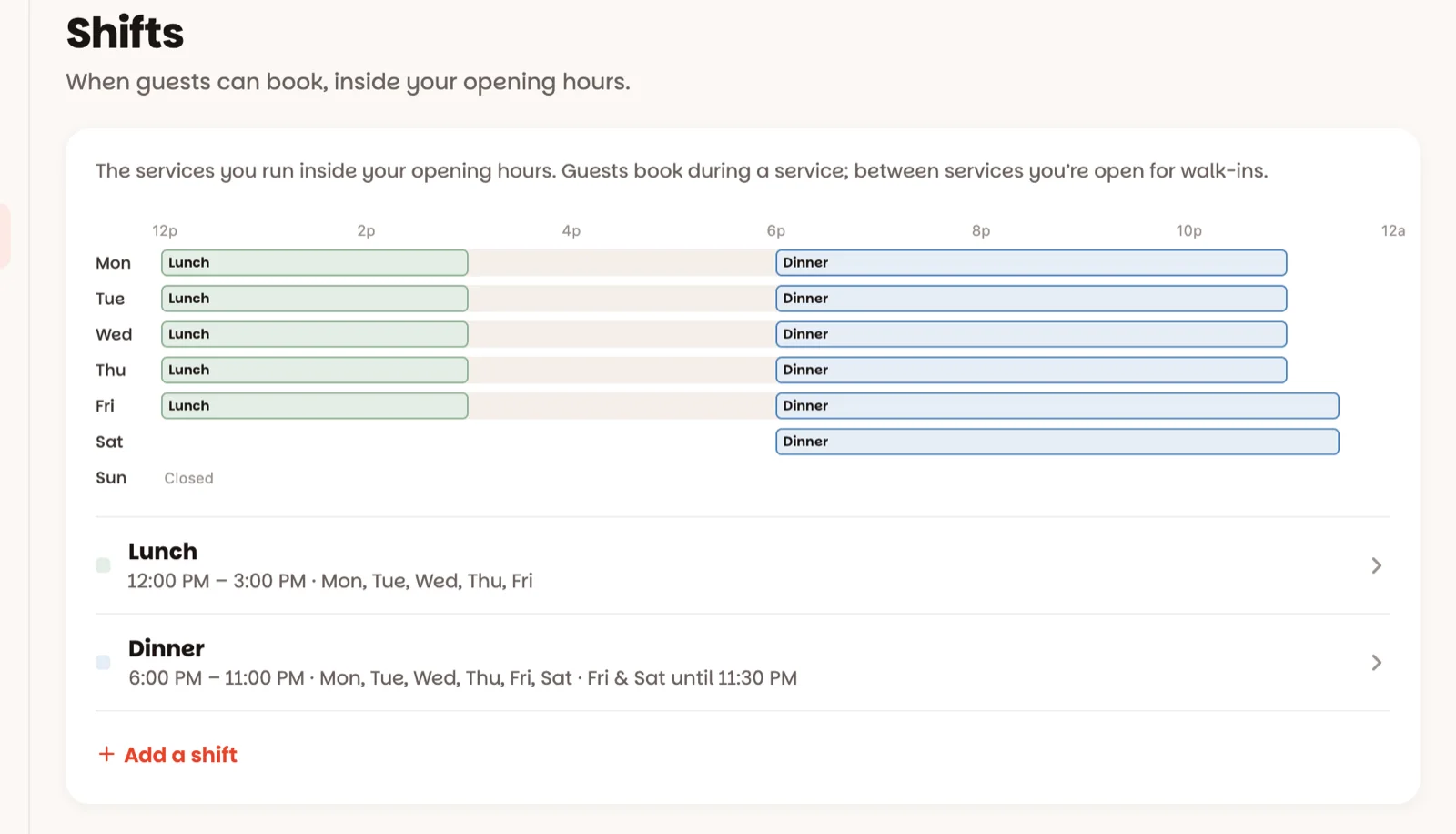
The picture at the top shows your week: the pale band is your opening hours, and each service sits inside it, in its own colour. Under it is the list of services, with their times and days.
Tap a service, or Add a shift
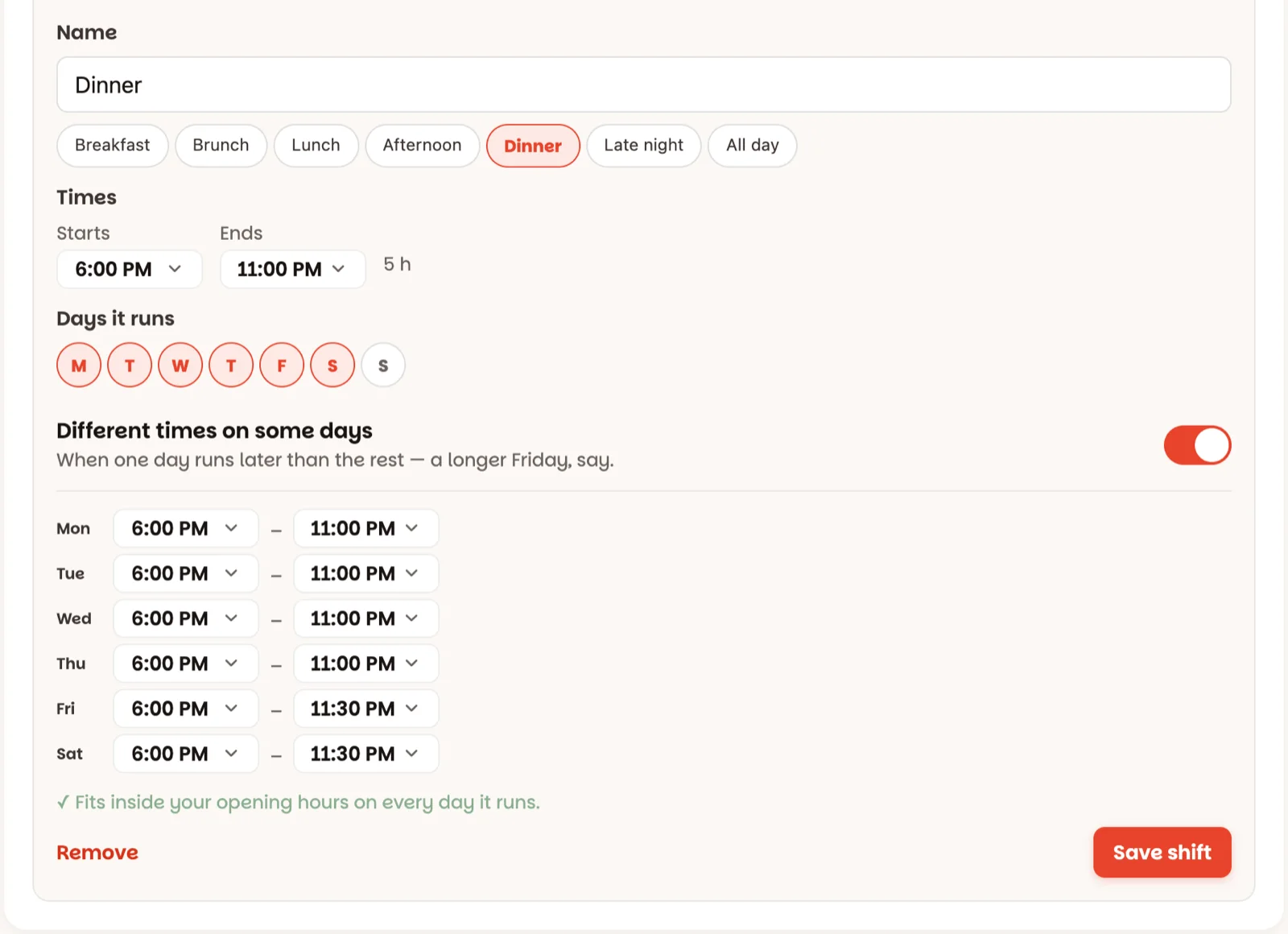
- Name — tap a ready-made one (Lunch, Dinner, Brunch, Late night…) or type your own.
- Times — when it starts and ends. Past midnight is fine: Ends after midnight, the next morning.
- Days it runs — tap the days, M to S.
- Different times on some days — when one day runs later than the rest, like a longer Friday.
Check the line under it, then save
A green line means you're done: ✓ Fits inside your opening hours on every day it runs. Tap Save shift (or Add shift for a new one) — Shifts saved.
If something doesn't fit — the service runs past closing, say — the line says so in red and offers a fix in one tap, like Close Fri at 12:30 AM. Tap it, then save.
Removing a service
Open it and tap Remove, then Tap again — remove. Nobody's reservation is cancelled: any that no longer fall inside a service show in Book as needing a new time.
Good to know
- Pacing is set for each service separately — how many guests can arrive at once, the last reservation time — under Settings ▸ Pacing (how).
- Changing just one night — no lunch on a holiday — is done from the floor, not here: tap the date at the top (how). Nights that are different are listed here under Coming up · days that are different, with Back to usual.
- Shift in the main menu is something else — tonight's numbers (how).
- Staff can see this screen but not change it.