
Dinesty Host works on iPhone, Android, iPad and in any web browser, with the same account everywhere. There's no sign-up inside the app: your restaurant's owner invites you by email.
Open the invite and tap Accept invitation
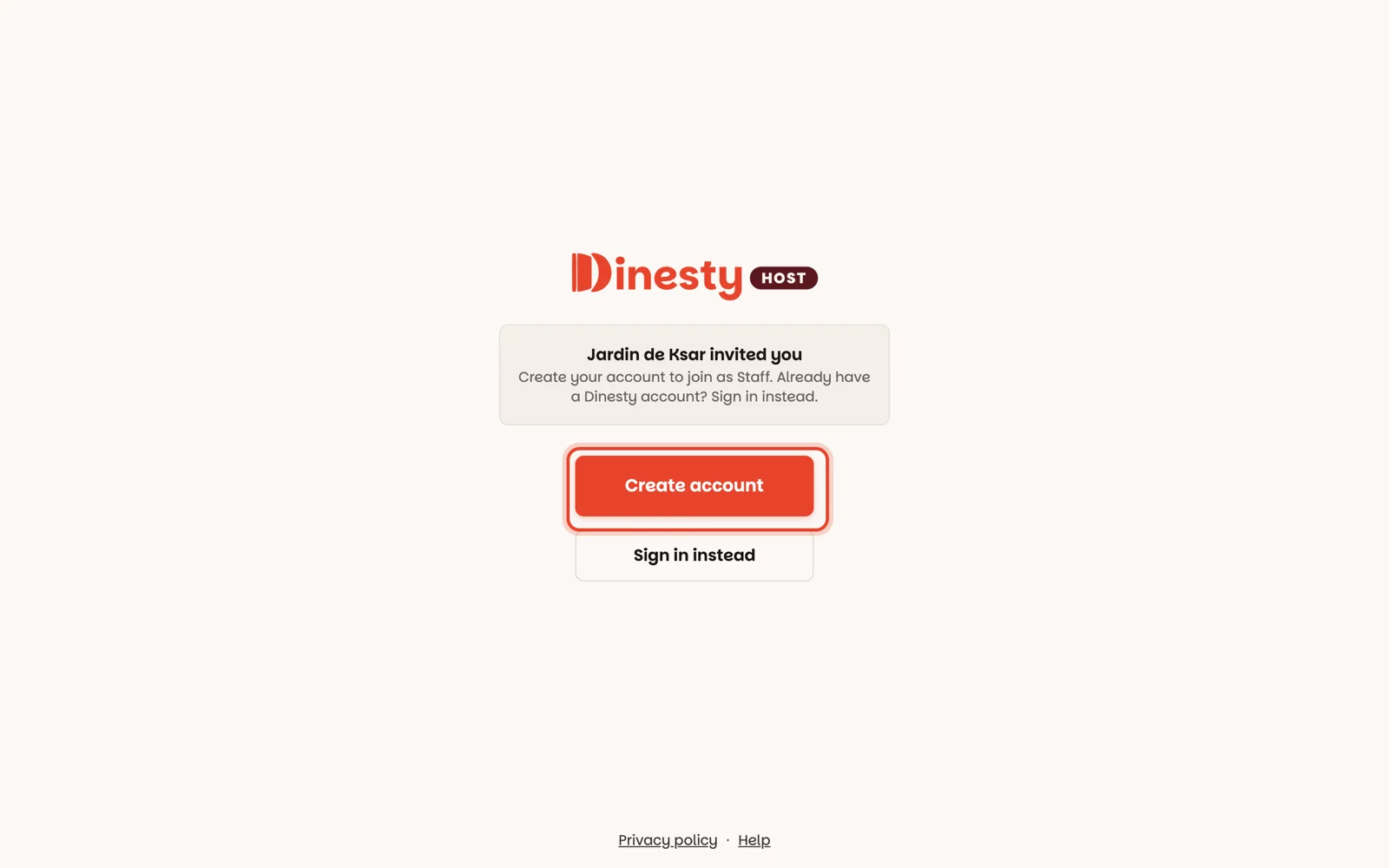
The email is called Join Jardin de Ksar on Dinesty Host (with your restaurant's name). Tap Accept invitation. It opens Dinesty Host in your browser, says which restaurant invited you and as what — Manager or Staff — and how to get in.
New to Dinesty? Tap Create account
It takes you to the Dinesty sign-up page: first name, last name, email and a password you choose. Register with the email the invitation was sent to, and you land on your restaurant's floor. That's it — you're on the team.
Already use the Dinesty app? Tap Sign in to join
Dinesty Host and the Dinesty app share one account. If your email already has one, the invitation says so and shows your email and password boxes with Sign in to join — no new account. Type the same email and password as in the Dinesty app.
Signed up with Google or Apple? Dinesty Host signs in with email and password only, so set a password once: tap Forgot password? under the boxes, then Forgot Password? on the Dinesty page that opens, and follow the email. Then sign in with your email and that password. It's the same account — Google or Apple keeps working in the Dinesty app.
Your Dinesty account uses a different email from the one you were invited at? An invite only works for the email it was sent to, so ask whoever invited you to send it to the email your Dinesty account uses — or tap Create account and make one with the invited email.
On your other devices, type your email and password
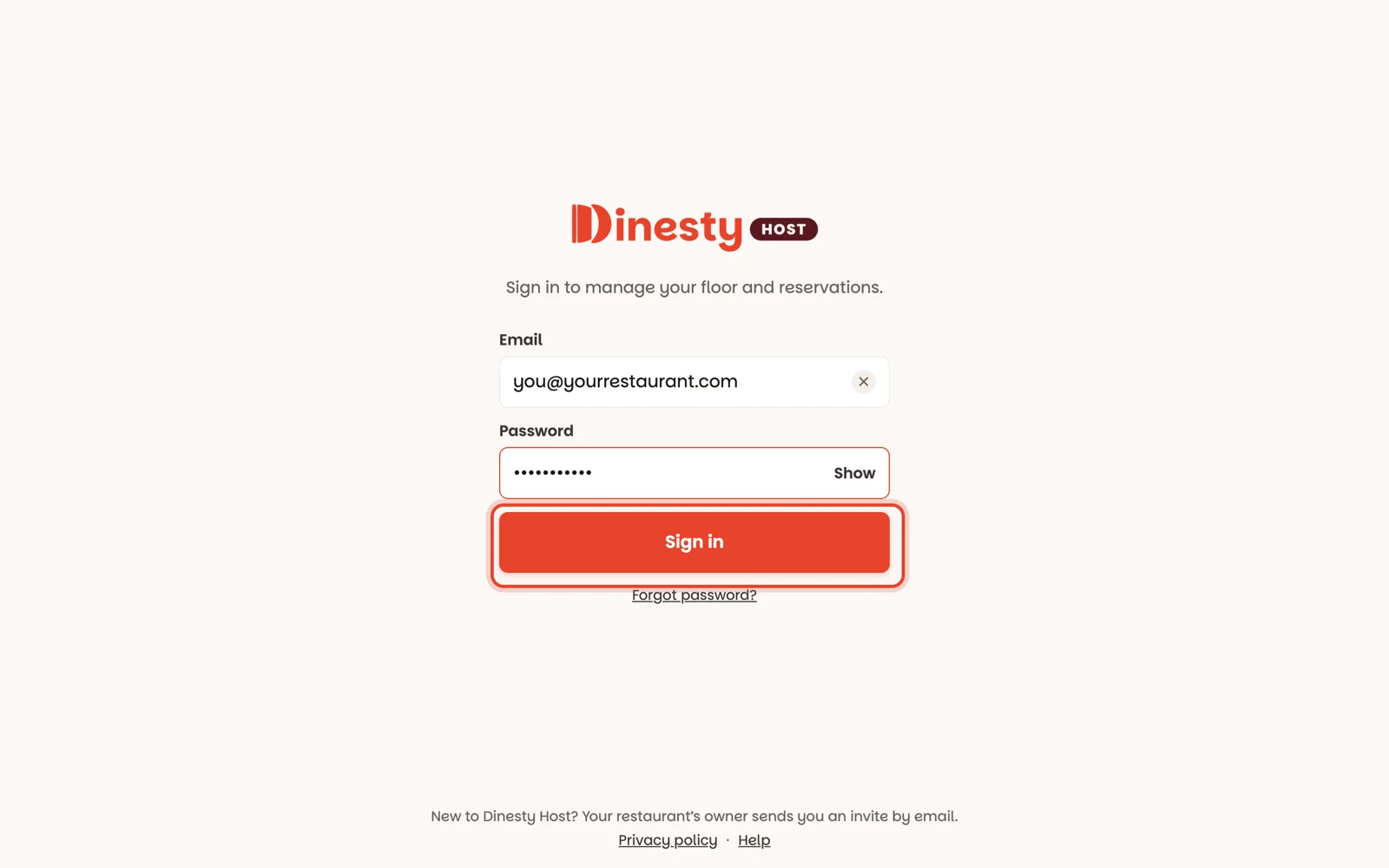
Open the Dinesty Host app on your phone or tablet — or host.dinestyapp.com on a computer. Type your email and password and tap Sign in. Forgot your password? Tap Forgot password? under the boxes.
Dinesty Host keeps its own sign-in. Being signed in to the Dinesty app — or anything else from Dinesty — on the same phone or browser never signs you in to Host as that account, and signing out of Host doesn't sign you out of them.
Work at more than one restaurant? Pick one
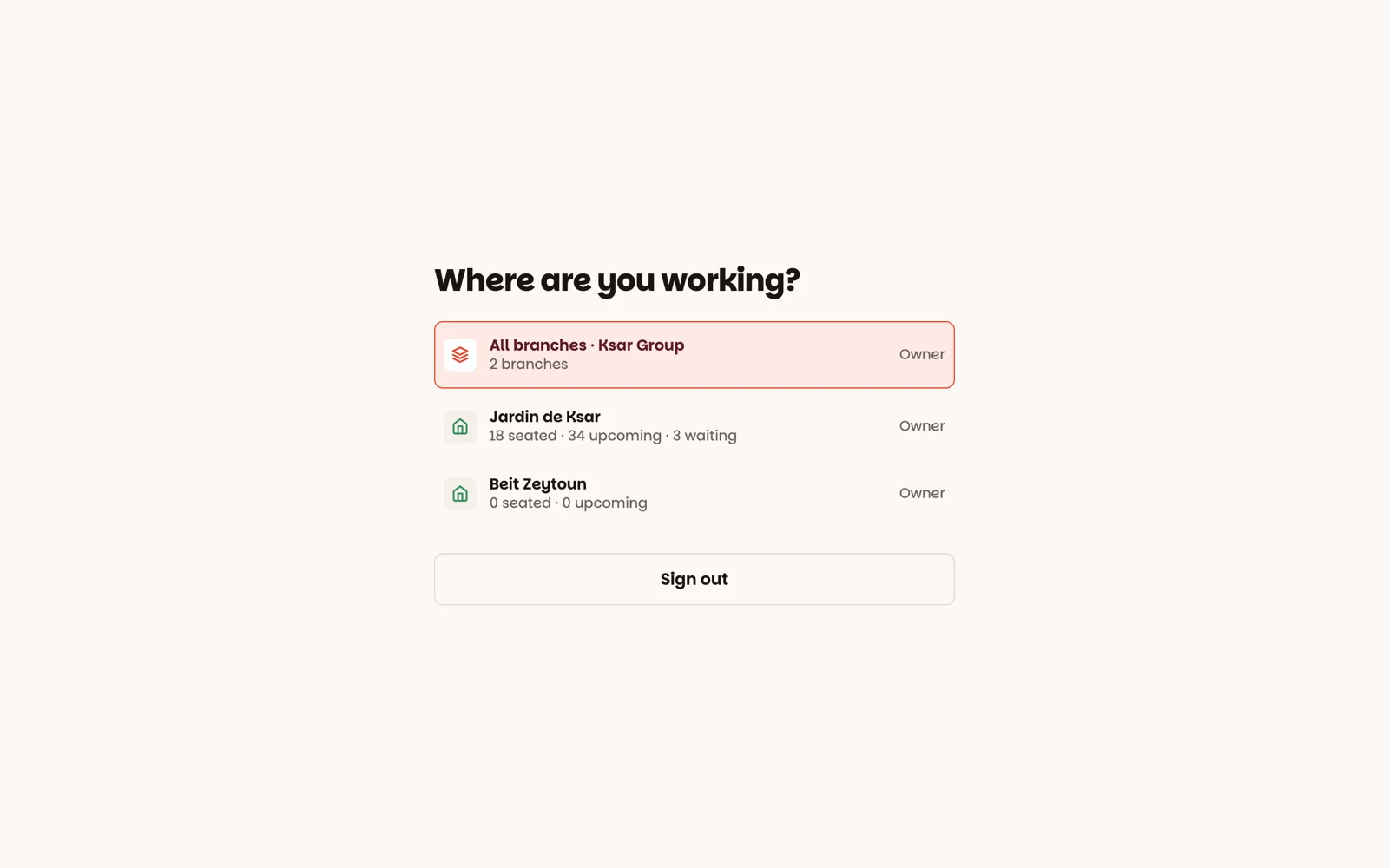
A screen asks Where are you working? — tap the restaurant you're at today. The app remembers it on that device. To switch later, use your account menu (how).
If something's off
- "That email and password don't match" — check both, or tap Forgot password? to set a new one.
- "Too many tries" — wait a few minutes, then try again.
- "You are already authenticated as different user" after creating your account or setting a password — Dinesty's page noticed another Dinesty account signed in on this browser. Your new account or password is saved: tap « Back to Application and sign in with it.
- "Your invite to … has expired" — invite links last 14 days. Ask the owner to send a fresh one.
- "This invite link has already been used" — each link works once. If it was you, just sign in.
- "Another account has already used this invite" — someone accepted your link before you did, maybe on a device signed in to their own account. Ask whoever sent it for a new link.
- "This invite is for someone else" — you're signed in with a different account from the one invited, and only the invited email can join. Tap Use a different account and sign in with the email the invite was sent to.
- "No restaurant access" — the account you signed in with isn't on a restaurant's team. The screen shows which account that is: if it's the wrong one, tap Use a different account. If it's the right one, ask the owner to invite you.
- "Couldn't reach Dinesty" — check the internet connection and try again.