
Dinesty Host runs the door of your restaurant: who's at which table, who has a reservation, and who's waiting. Everything your team does shows up on every device within a second or two — the tablet at the host stand, the manager's phone and the laptop in the office all look at the same room.
Home is your dining room, live
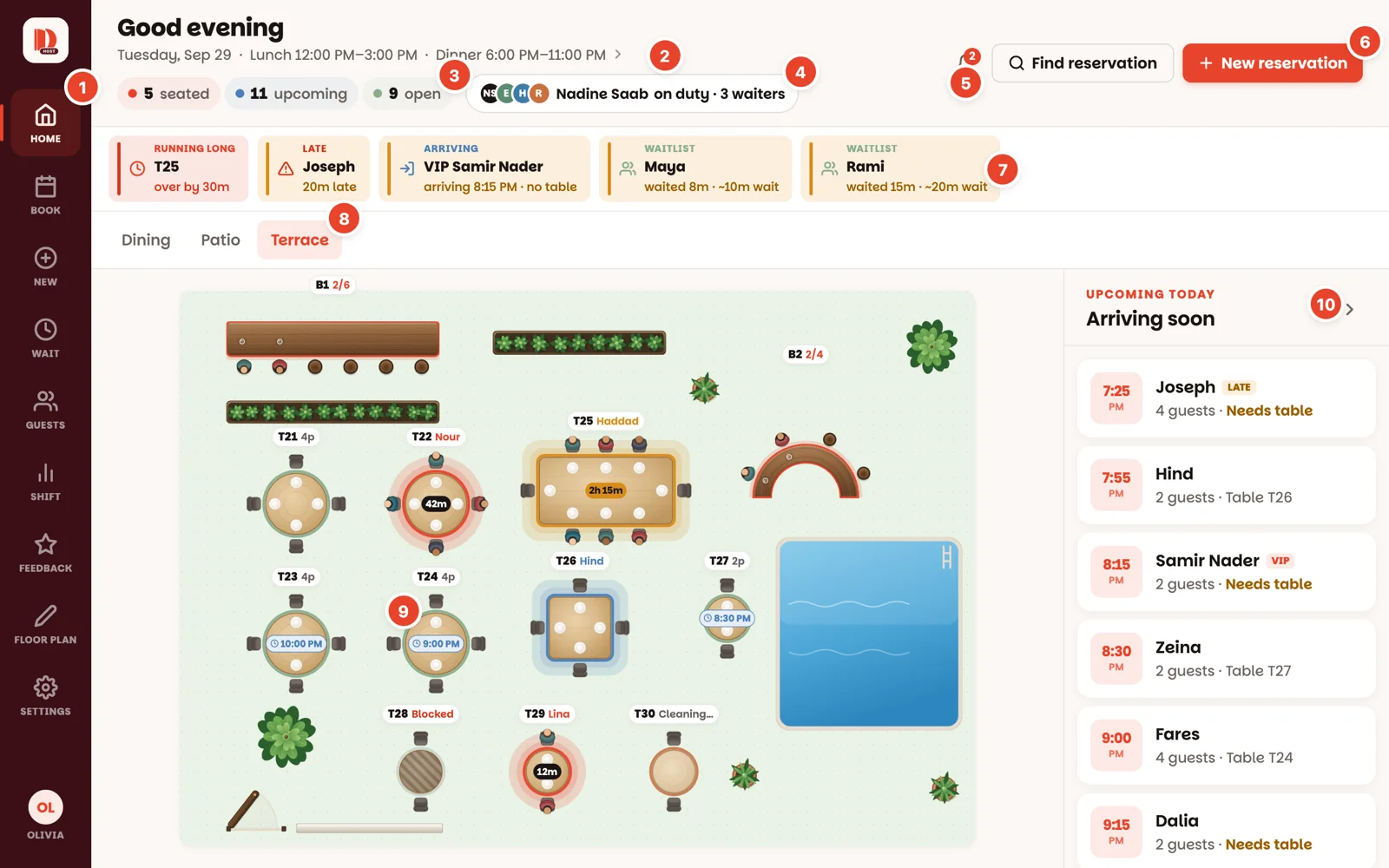
When you sign in you land on Home. Here's what's on it:
- 1The menu — every part of the app. More on it in the next step.
- 2Today — the date and today's services. Tap it to see tonight's hours, or change them.
- 3The counts — tables seated, reservations still to come, and tables open right now.
- 4Who's on tonight — the manager on duty and the waiters. Only if your restaurant uses Tonight's team.
- 5The bell — what's new: reservations guests made themselves, cancellations, and — for owners — guest ratings.
- 6Find reservation and New reservation.
- 7Alerts — anything that needs a person right now. Tap one to go straight to it.
- 8Rooms — each room has its own map. Tap a name to switch.
- 9The floor — every table in its colour. Tap a table to do something with it.
- 10Arriving soon — today's reservations still to come, in time order.
The menu on the left

One button per job:
- Home — the live floor. You'll spend most of the night here.
- Book — every reservation: tonight, tomorrow, next month.
- New — take a new reservation.
- Wait — the waitlist, for when the room is full.
- Guests — your guest book: names, numbers, regulars, VIPs.
- Shift — tonight in numbers.
- Feedback — what guests said about their visit. Owners only.
- Floor plan — where the room is drawn. Managers and owners only.
- Settings — hours, services, rules, and your team.
- At the very bottom, your picture — your account, help, and signing out (more).
Don't see a button a colleague has? Some depend on your role (Floor plan, Feedback), and an owner can switch parts of the app off. Nothing is broken.
On a phone, the menu is at the bottom
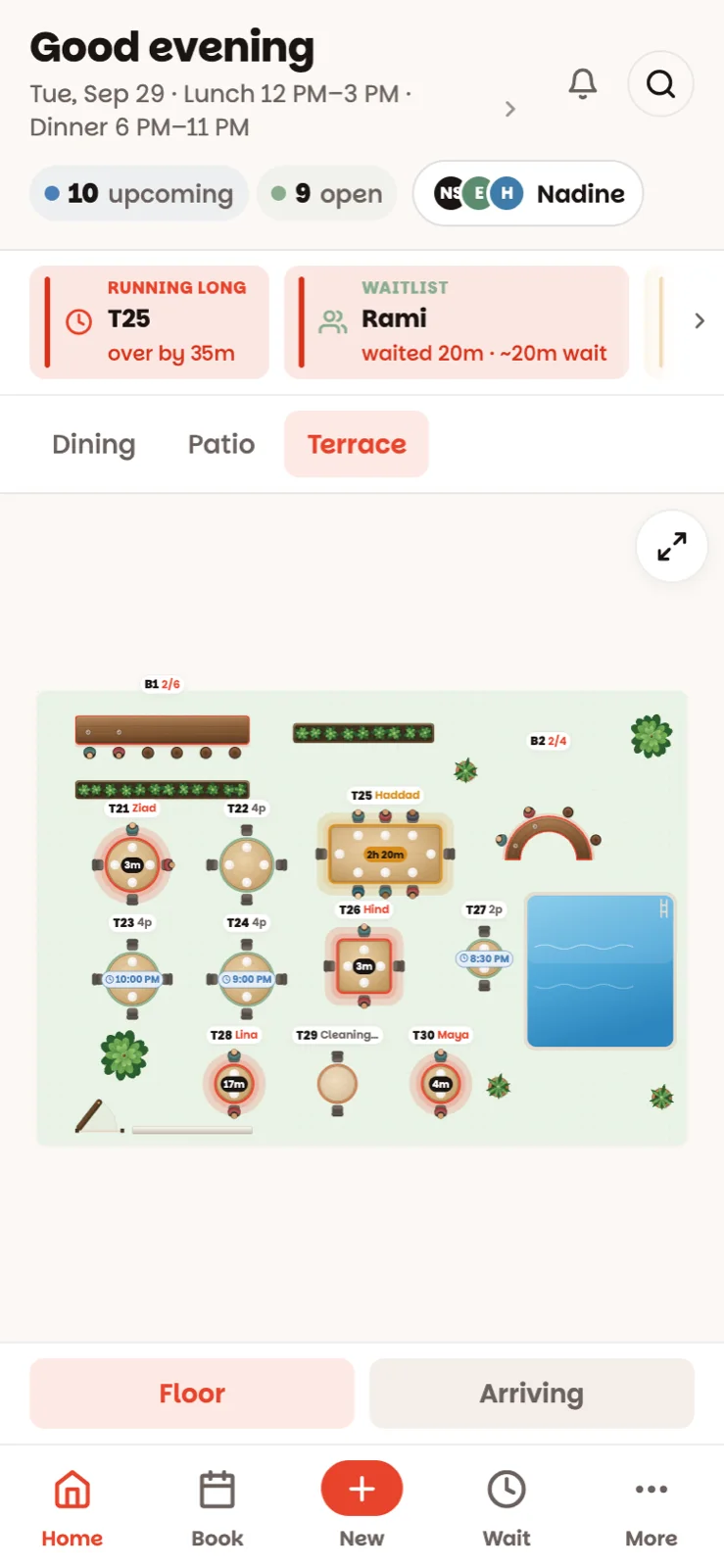
Along the bottom: Home, Book, the round red New button, Wait, and More for everything else. On the home screen, Floor and Arriving switch between the room and the list of who's coming.
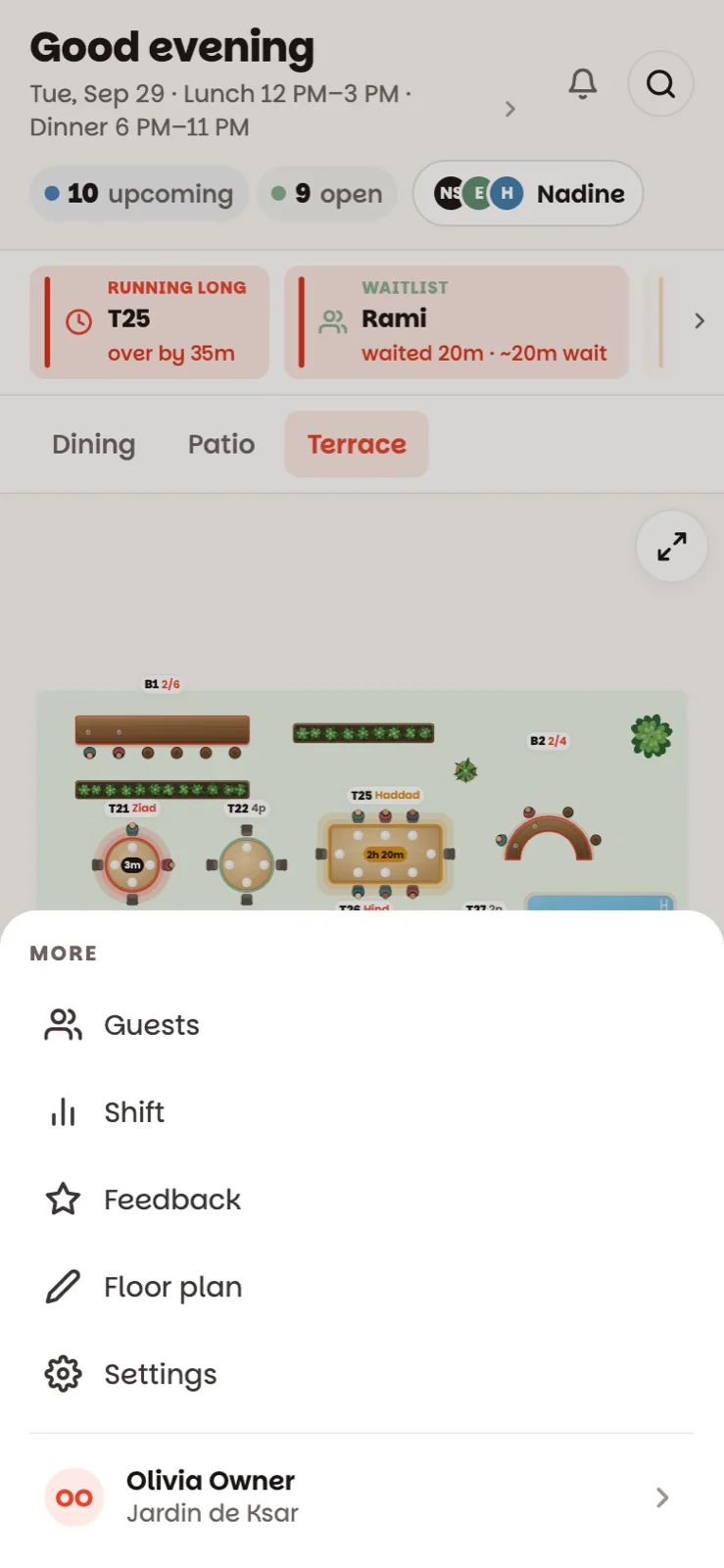
More opens the rest of the menu — Guests, Shift, Floor plan, Settings — with your name and restaurant at the bottom: tap it for your account and help.
It updates by itself
There's no refresh button. Seat a party on the tablet and it turns red on every other screen within a second or two. If two of you work the door, you're always looking at the same room.
Good to know
- On the floor, everything saves the moment you tap. Settings and the floor plan have their own Save buttons — each guide says where.
- The internet dropped? The app keeps going and tells you what's happening — see When the internet drops.