
Six small steps, top to bottom. The form fills a summary as you go, so you can read it back to the guest before you confirm.
Tap New reservation

On the home screen it's the red button at the top right. On a phone, tap the round New button in the middle of the bottom bar.
How many guests?

Tap the number. A party of nine, eleven, or more than ten? Tap Other and type the exact number.
Set the party size first — which times are free depends on it.
Pick the day and the time
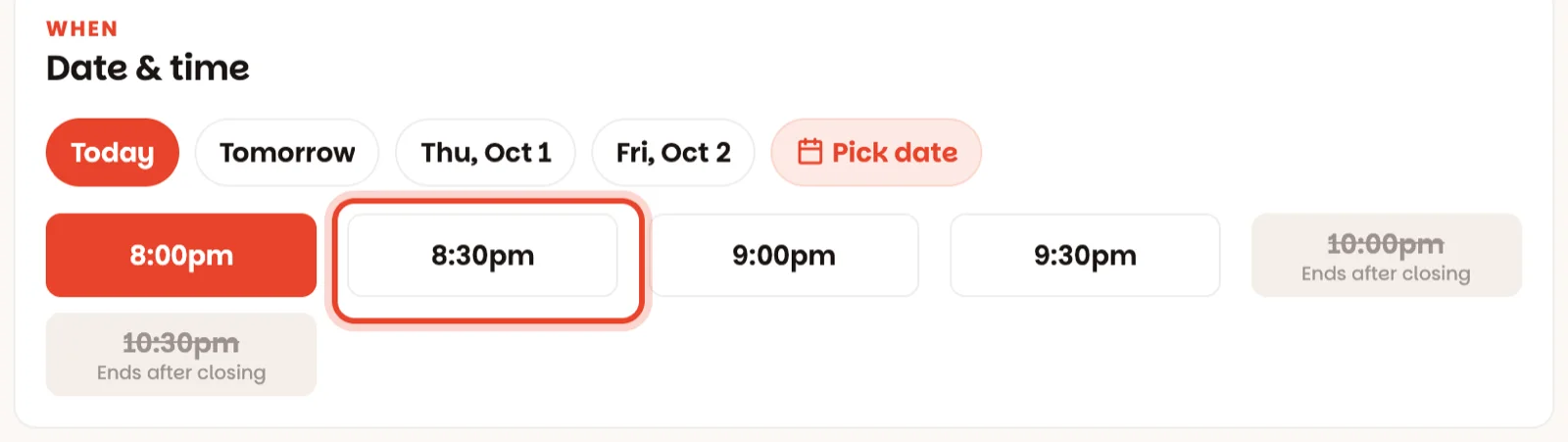
Tap Today, Tomorrow or one of the next days — or Pick date for anything further out. Then tap a time. The times are grouped under your services (Lunch, Dinner), and only open times are shown.
The grid does the maths for you. 7 left under a time means only a few seats are still free then. A time that is greyed and crossed out is one the app advises against — the word under it says why:
- Full — every table that could seat them is taken.
- Ends after closing — they'd still be eating when you close.
- Kitchen busy — as many guests already arrive in that quarter hour as your kitchen can take.
- Too early or Too late — before your first or after your last reservation time for that service.
- Kept for larger parties — the only free table is saved for bigger groups.
Greyed out means "we'd rather not", not "you can't". You can still pick it — the app asks you once more at the end.
Where would they like to sit?
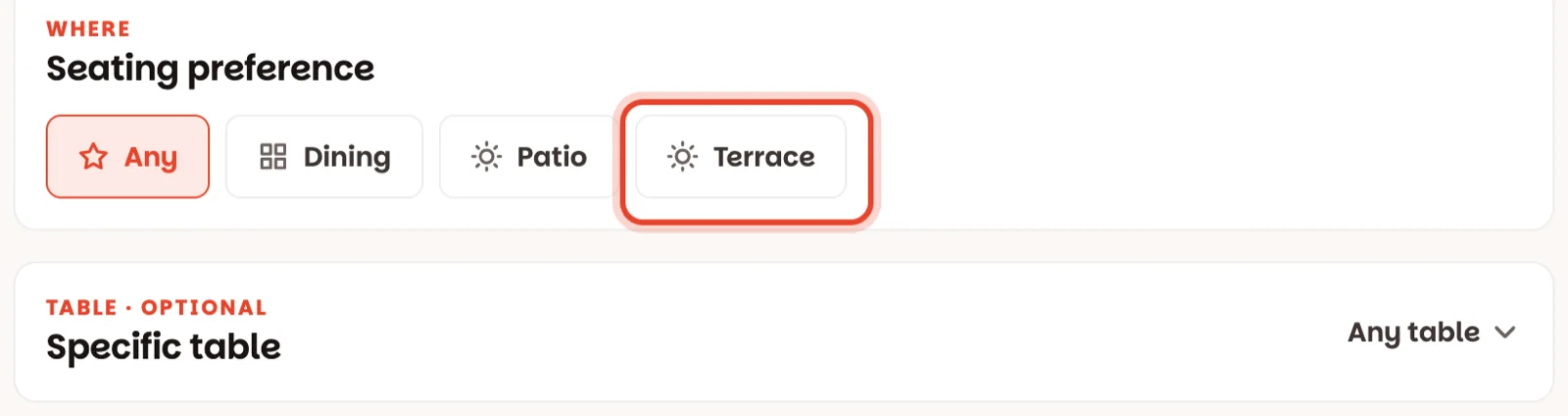
Only if the guest asks. Tap a room — Terrace, say — or leave it on Any.
Want to promise a particular table, like a regular's favourite corner? Open Specific table and tap it. Otherwise leave it on Any table: you'll give them a table later, or when they walk in.
Name and phone
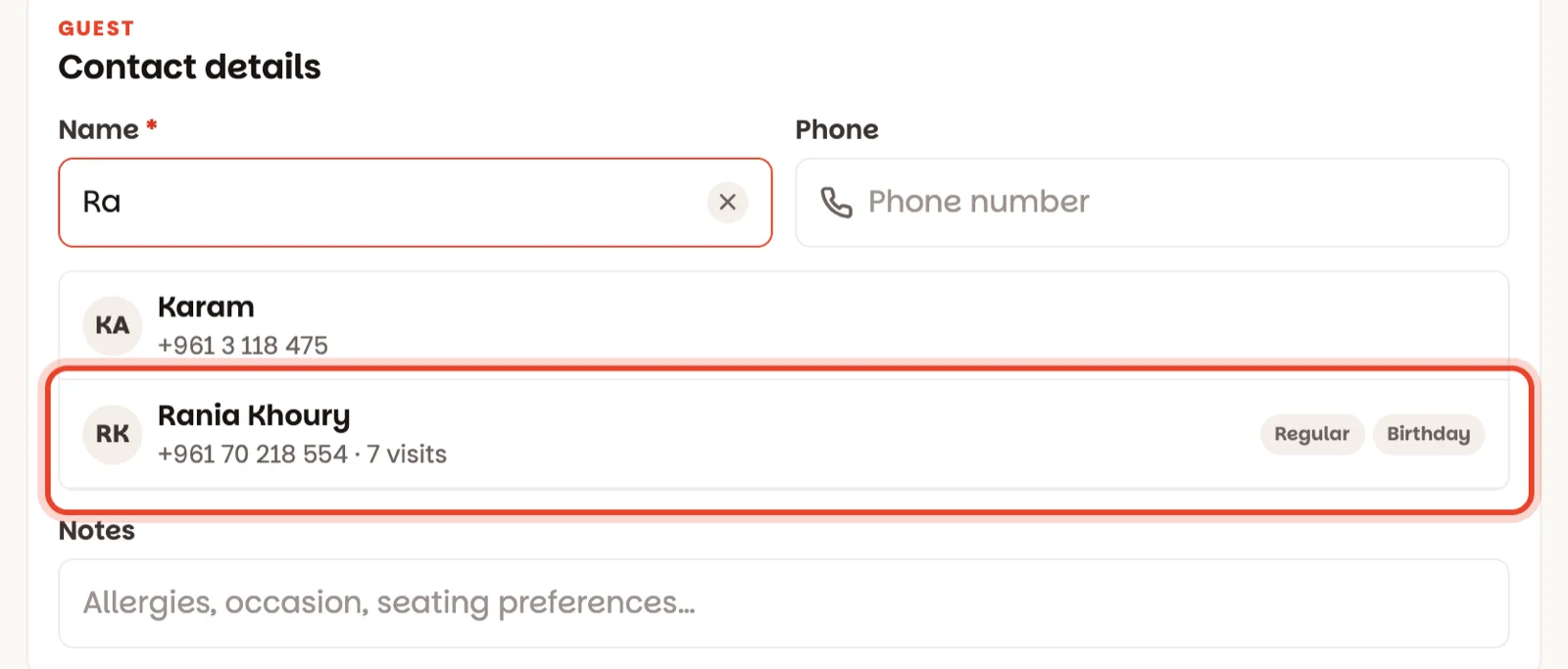
Type their name — it's the only thing you must fill in. After two letters, the app suggests guests it already knows: tap the right one and their name and phone fill in by themselves, with a Known guest note showing how many times they've been.
The phone is optional for small parties and required for large ones (more than 6 guests, out of the box), so a big group can be confirmed. Put allergies, birthdays and requests in Notes.
Read the summary, then Confirm reservation
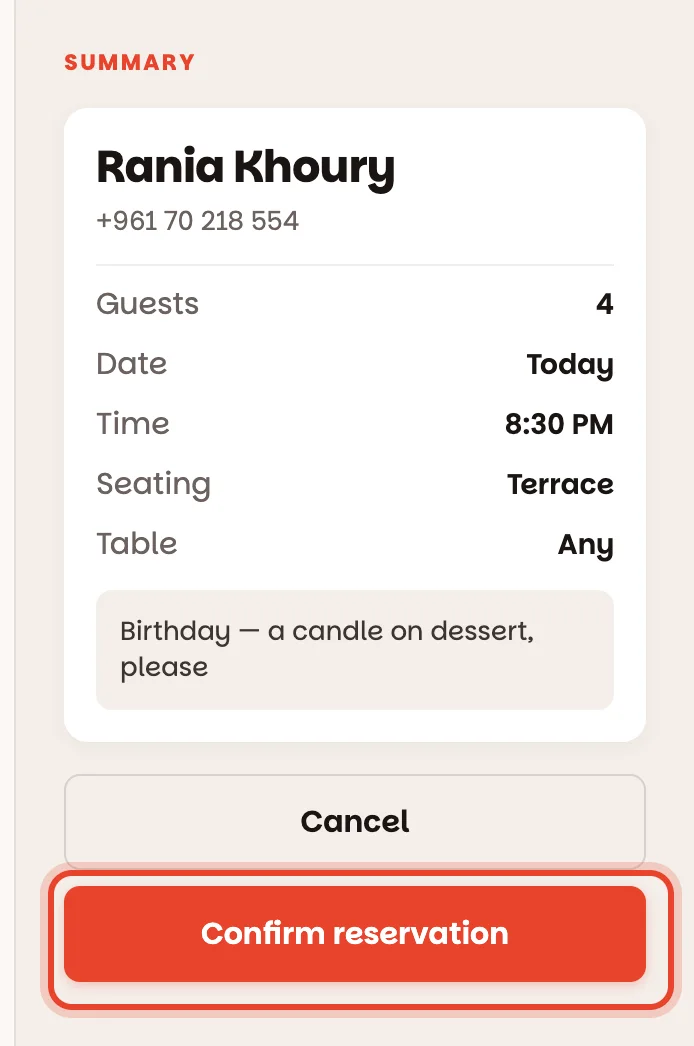
Read the summary back to the guest — guests, date, time, room. Then tap Confirm reservation.
You land on Book, where a bar says Booked · Rania, 8:30 PM. Made a mistake? Tap Undo on that bar straight away.
If the time is genuinely full, a red line explains why — for example That quarter hour is full — and the button changes to Book anyway. That second tap is on purpose: squeeze them in only if you know the room can take it.
Good to know
- With Guest messages on, a guest you book with a phone number gets a WhatsApp confirmation straight away — with a link to see or cancel the reservation.
- You can also hold a table straight from the floor: tap a free table, then Reserve for later.
- Switched screens in the middle of a call? What you typed is still there when you come back. Cancel clears the form.
- If the button stays grey and a red line says reservations are paused, a manager has switched them off under Settings ▸ Reservation rules.
- Guests can be booked up to 30 days ahead, out of the box. A manager can change that under Settings ▸ Reservation rules.