
Open Wait
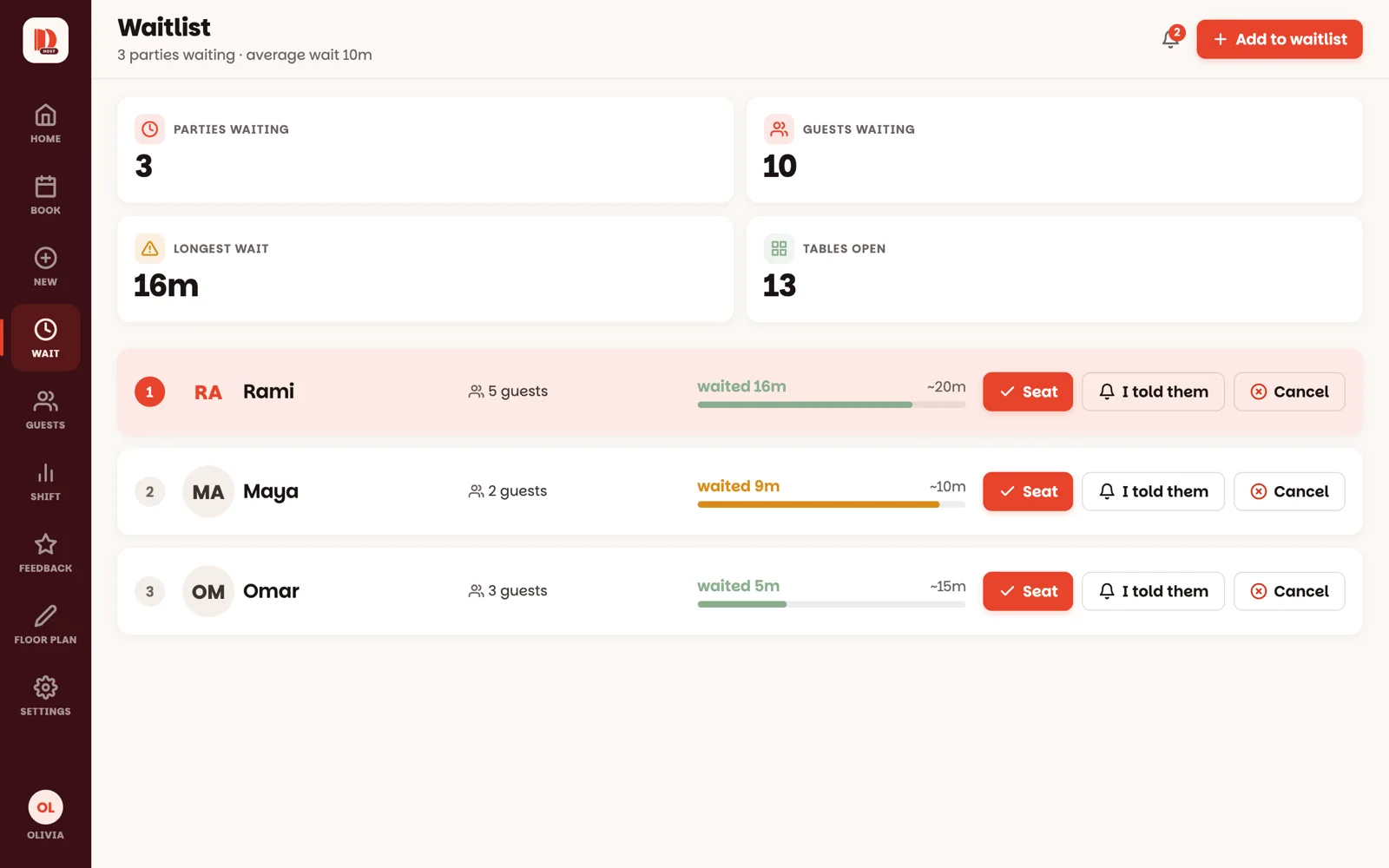
Tap Wait in the menu. Four counters at the top keep score: parties waiting, guests waiting, the longest wait, and how many tables are open right now.
Tap Add to waitlist
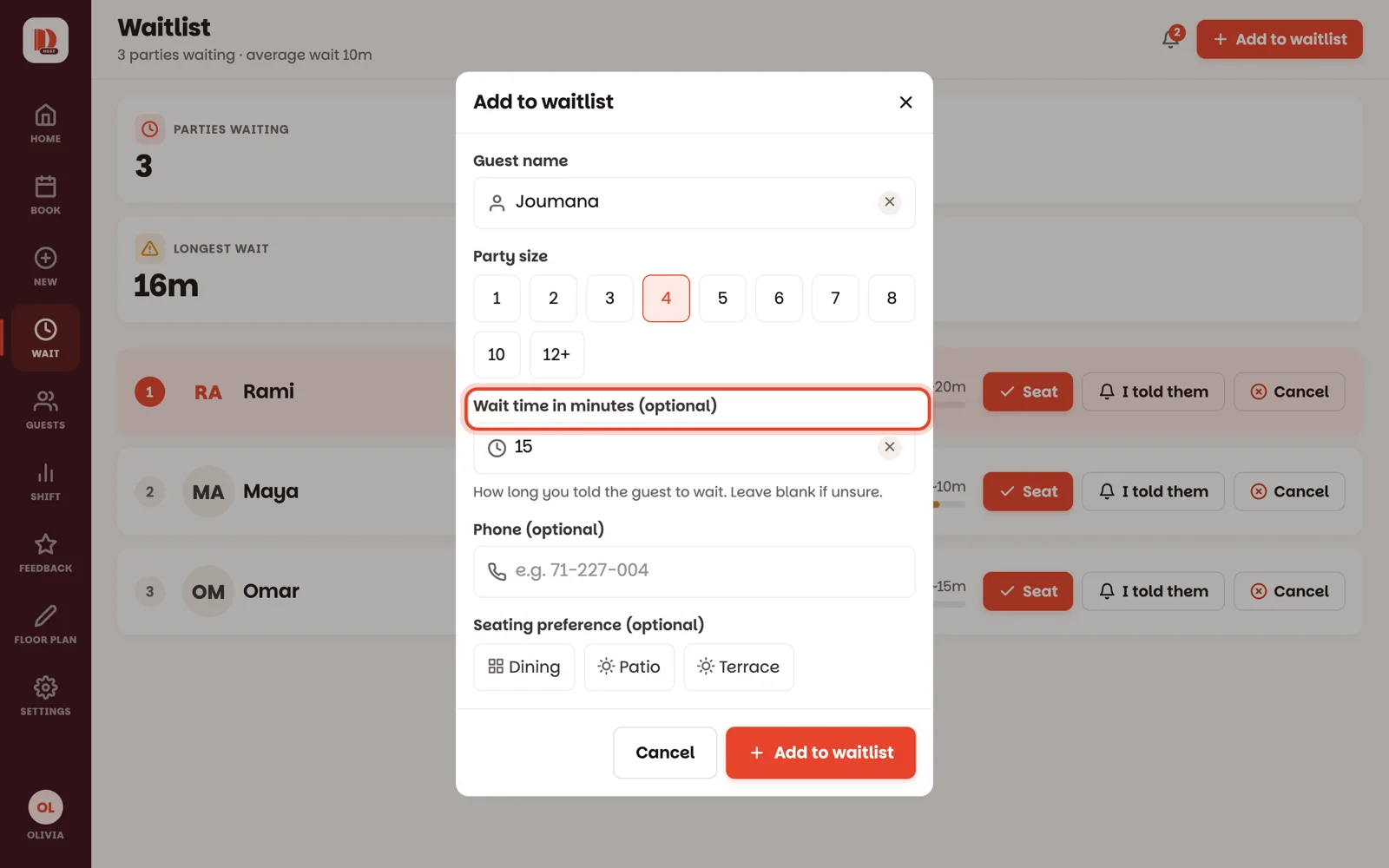
Only the name is needed. Then:
- Party size — tap the number (12+ for a big group).
- Wait time in minutes (optional) — if you told the guest "about 20 minutes", type 20. Not sure? Leave it empty. The app never makes up a wait you didn't give.
- Phone (optional) and Seating preference (optional) — if they mentioned one.
Tap Add to waitlist at the bottom of the form.
Watch the line
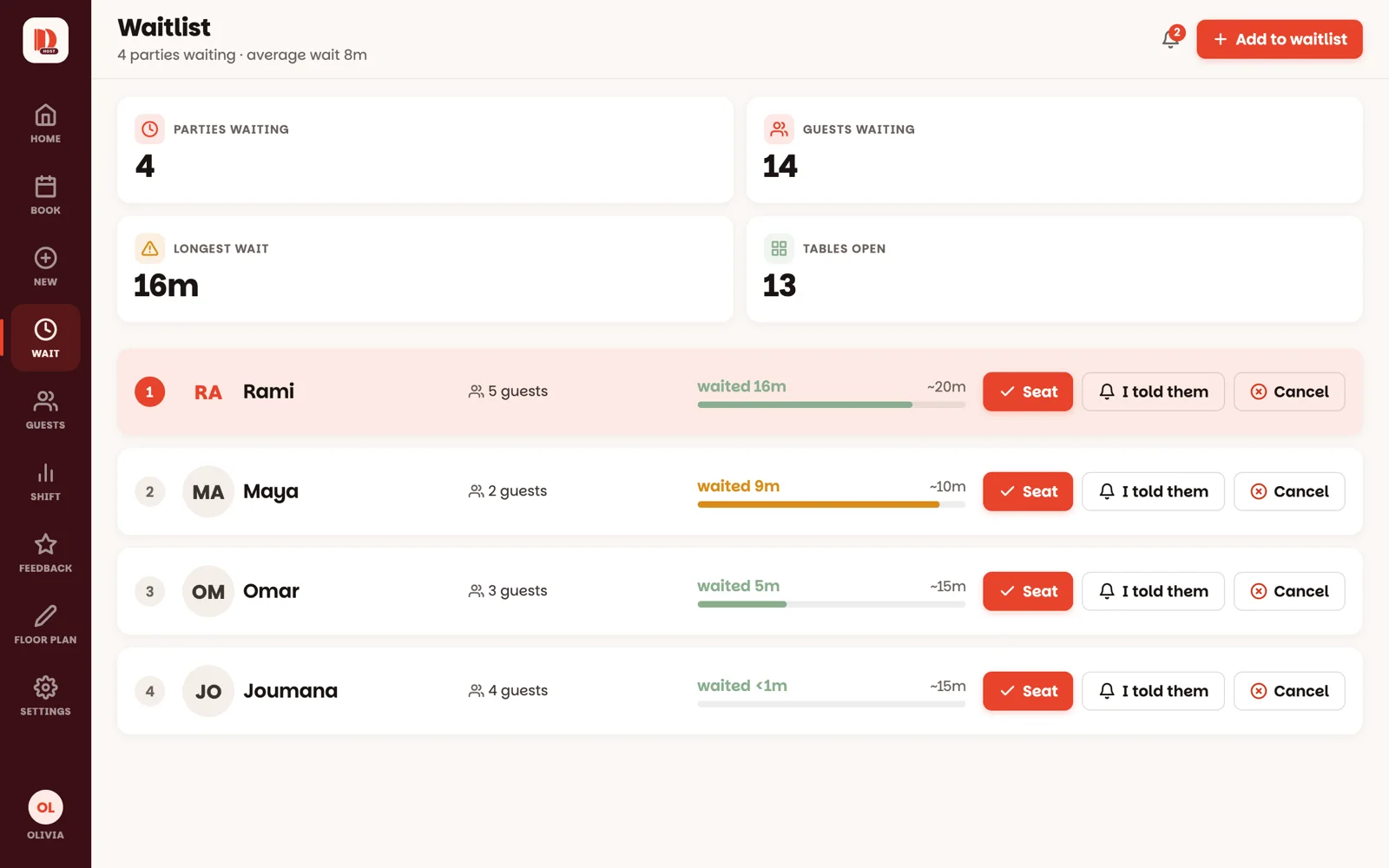
First in line sits on top. Each party shows how long they've waited next to the wait you gave them — waited 12m and ~20m. The bar fills as time passes and turns amber when their wait is almost up.
Tell them when their table is nearly ready
When you've let the party know, tap I told them. The row now says Told them with the time, so anyone at the stand knows. Tell again if you need to.
If your restaurant sends "your table is ready" on WhatsApp (Guest messages) and the party left a number, the button says Send ‘table ready’ instead — one tap and the message is on their phone. The row then says Sent on WhatsApp with the time. If it couldn't be sent (the number isn't on WhatsApp), the row says so in red: call them.
When their table is ready, tap Seat — next guide: Seat from the waitlist.
Good to know
- You don't have to keep this screen open. When a party is close to its wait time, a Waitlist chip appears above the floor, and the waiting parties are listed under Waiting in the Arriving soon panel on the home screen.
- Someone gave up and left? Tap Cancel on their row, then Tap again. Two taps, so a brush of the thumb can't drop anyone.
- If the button says Closed, the waitlist is paused — a manager can switch Accept waitlist back on under Settings ▸ Reservation rules.