
Your restaurant gets its own page at book.dinestyapp.com/your-name. A guest picks how many people, the day and a time with a free table, leaves a name and a WhatsApp number — and the reservation is confirmed on the spot. No one at the stand has to approve it: it lands on Book like any other, marked Booked online.
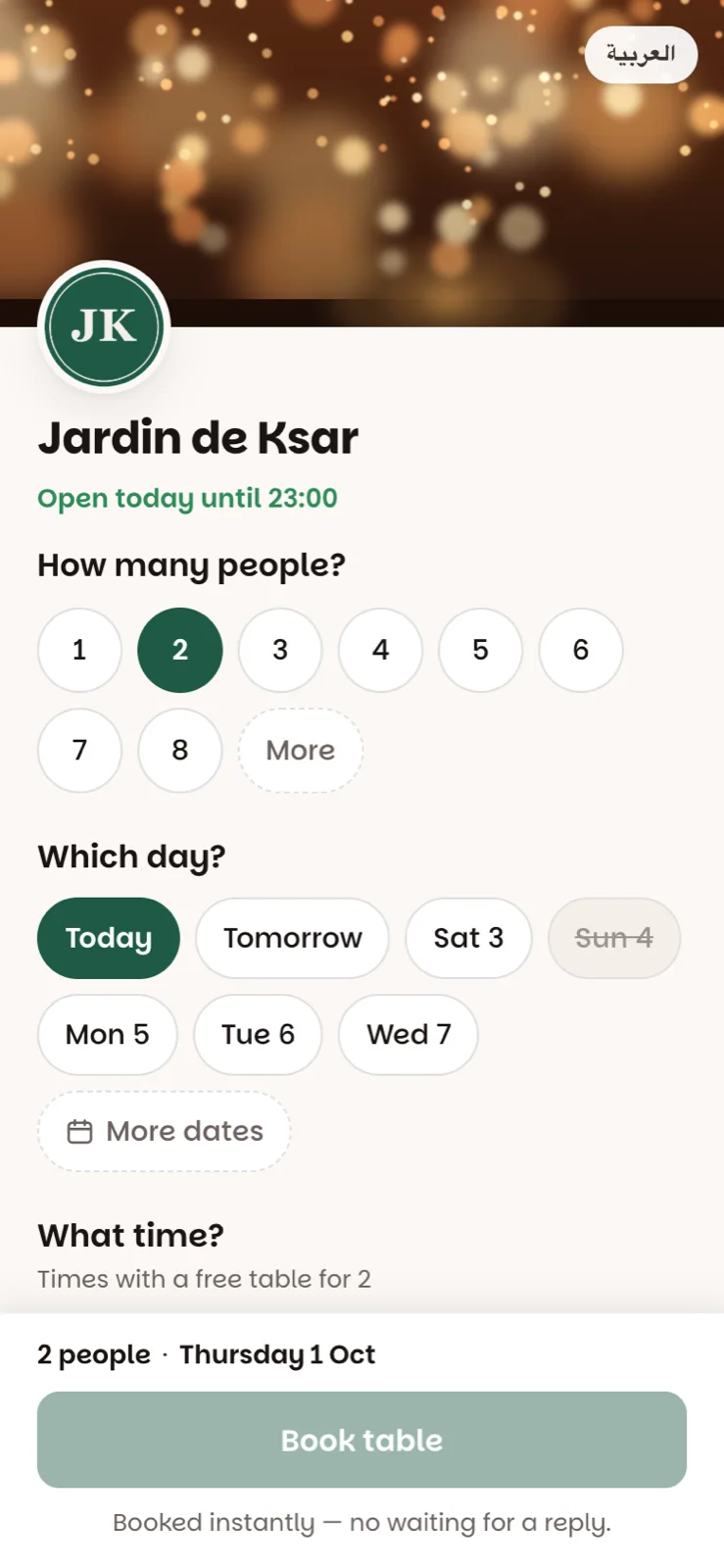
The page is yours, not ours: your logo on top, your photo, your colour on the buttons. Only a small "Powered by Dinesty" sits at the bottom.
Choose your address
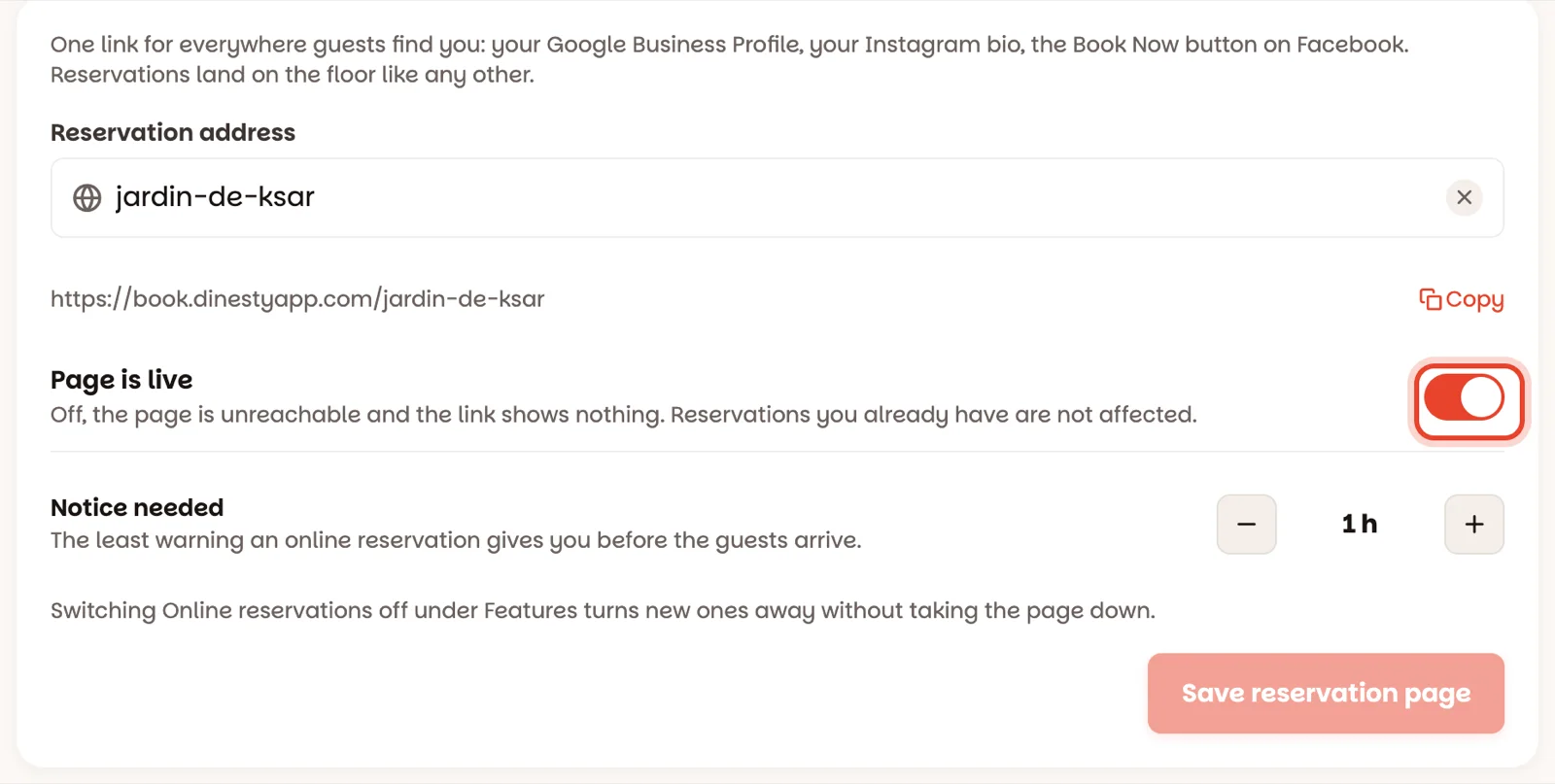
Open Settings ▸ Online reservations. Under Reservation address, type the short name guests will see in the link — usually your restaurant's name, like beit-mariam. Pick it once: it's the link you'll put on Google, Instagram and Facebook.
Switch the page on
Switch on Page is live and tap Save reservation page. Guests can now reserve. The page only ever offers times your floor can really seat — your opening hours, your services, your pacing and the share of seats you sell online all apply.
Copy next to the link puts it on your clipboard. The next guide shows where to paste it: Share your reservation page.
Make it yours
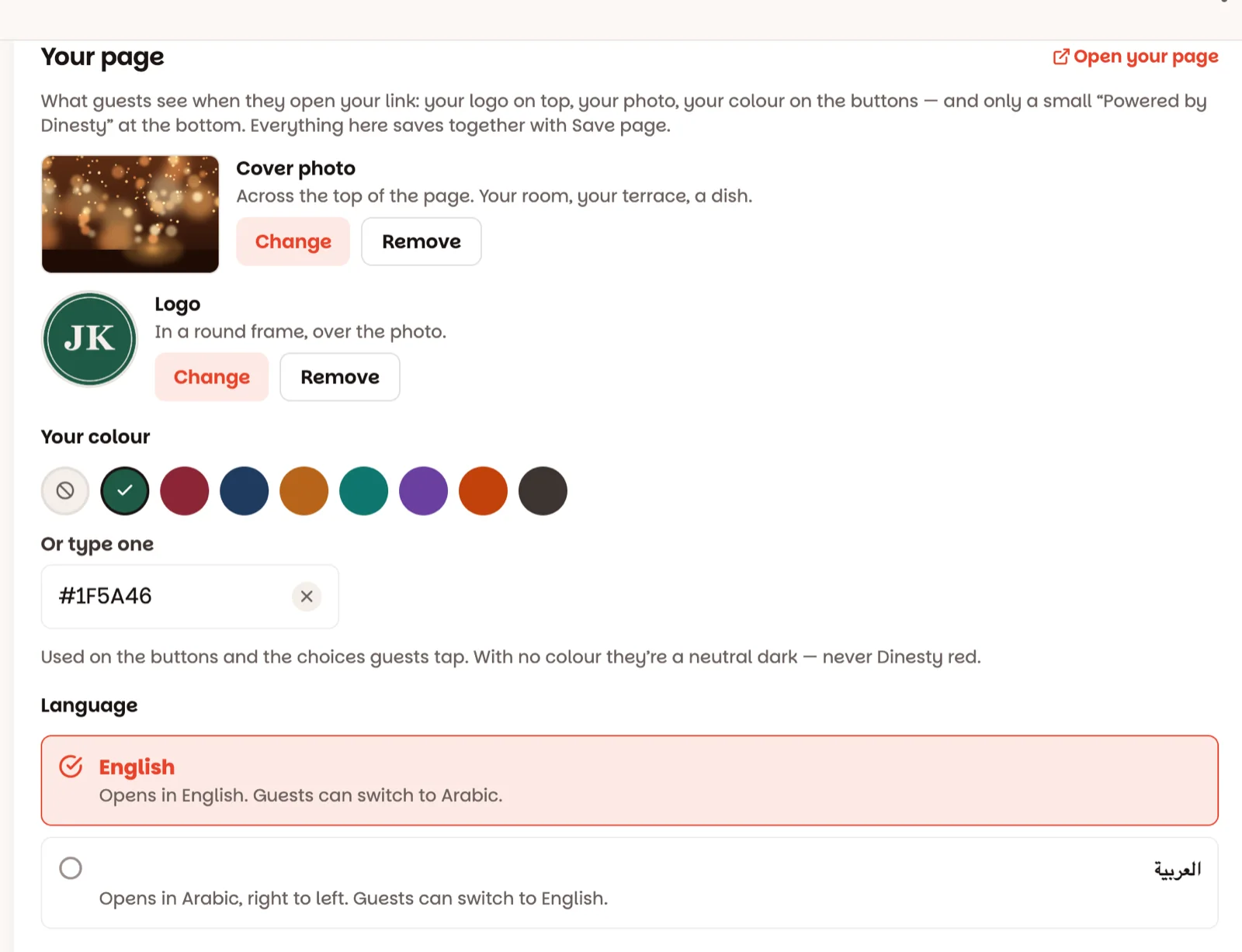
Under Your page:
- Cover photo — across the top of the page. Your room, your terrace, a dish.
- Logo — in a round frame over the photo.
- Your colour — on the buttons and the choices guests tap. Pick one, or type your own (like #1F5A46). With no colour, the buttons are a neutral dark.
- Language — English or العربية. The page opens in this language, fully right to left in Arabic, and guests can switch.
Pictures are added from the web version of Host. Tap Save page — photos and settings save together.
Decide how big a party can reserve
Switch on No limit online and any party can ask: the page only offers times a table actually fits. Or leave it off and set Largest party online. A bigger party is offered what you choose instead: Ask them to call (shows your number), Ask them on WhatsApp (opens a chat with you) or Say nothing.
Ask for a WhatsApp code (if you want)
Ask guests to confirm their WhatsApp number sends a 6-digit code before the table is held. Fewer fake reservations, one more step for the guest. Tap Save page.
When a reservation comes in
- It appears on Book and on the floor straight away, and the bell lights up.
- Open it to see where the guest came from — Booked online via Instagram, from your QR code…
- The guest keeps their own link to see or cancel it. A cancellation frees the table and shows up under the bell too.
- With Guest messages on, they also get a WhatsApp confirmation, and an email if they gave one.
Good to know
- Only owners can change the page. Managers can see it.
- Changing the address breaks every link you've already shared — update Google, Instagram and Facebook after.
- Page is live off? Guests who already reserved can still open their link.