
Three roles:
- Owner — everything, including this screen, Features and guest ratings. Owners are set up with Dinesty.
- Manager — runs service and sets the restaurant up: the floor plan, hours, services, timing, rules, tags.
- Staff — runs service: the floor, reservations, the waitlist, guests. Staff don't see Floor plan or this screen — that's on purpose.
Waiters don't need an account. They're added by name on the floor, in Tonight's team. Invite the people who'll use the app.
Open Settings, then Team & permissions
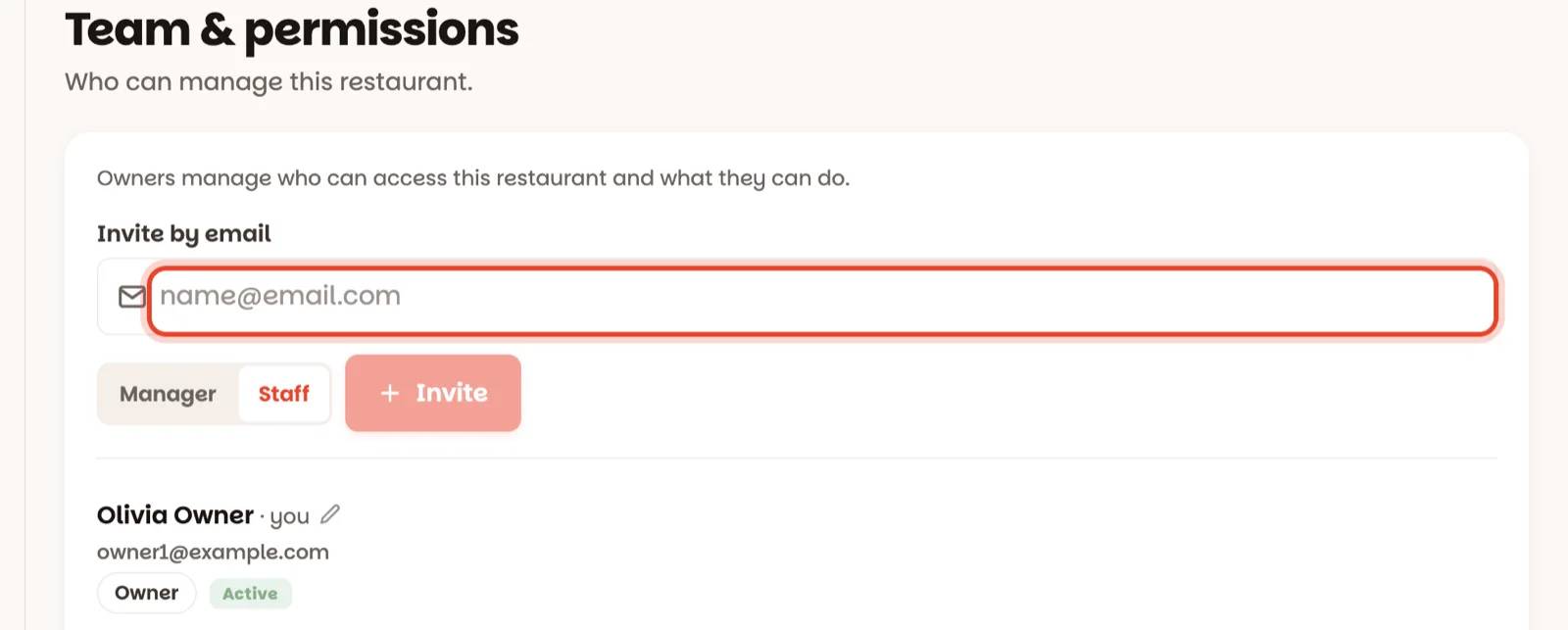
Only owners see this. Type the person's email in Invite by email, choose Manager or Staff, and tap Invite.
They get an email — and you get the link
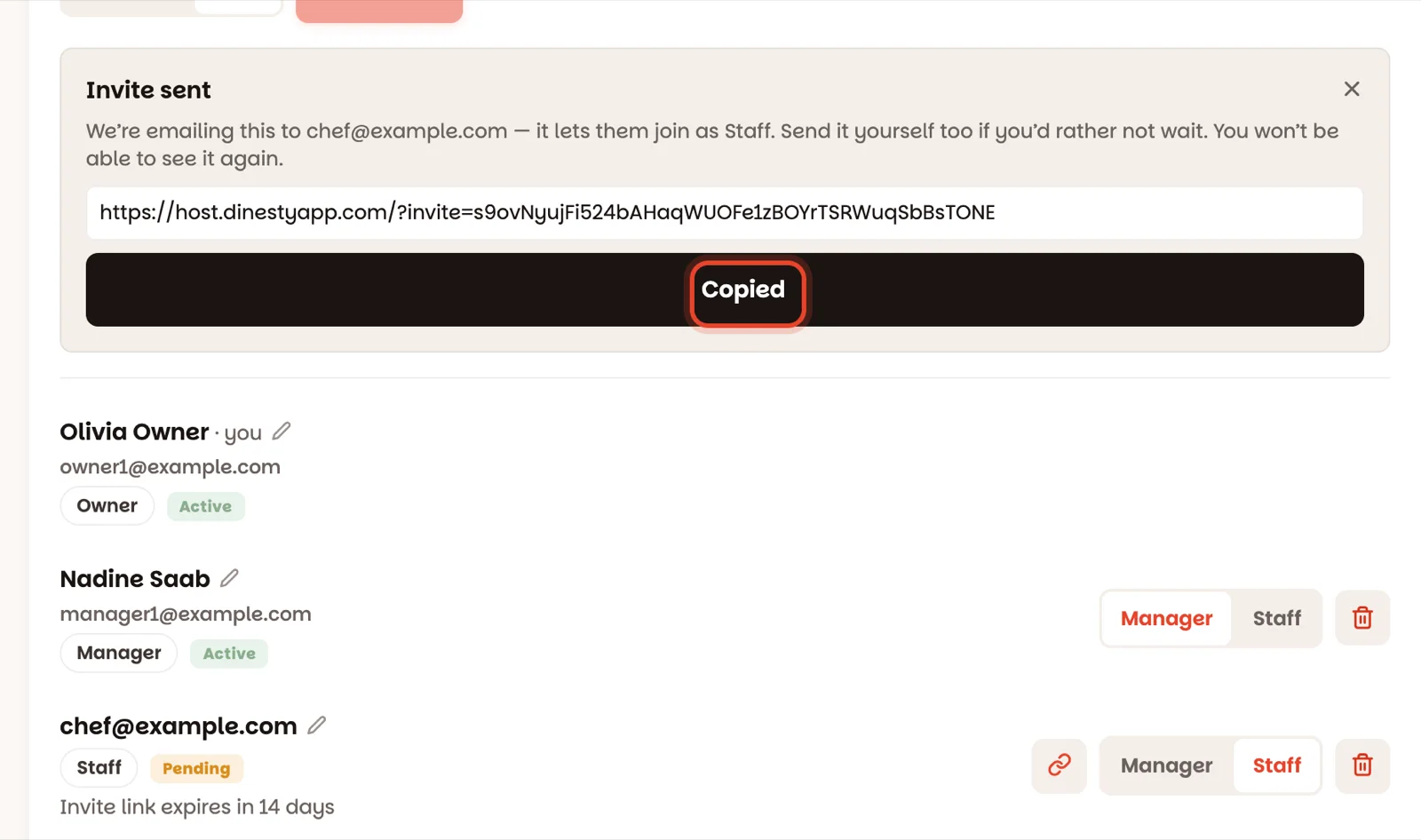
They're emailed an Accept invitation button. The same link shows on your screen, already copied for you — the button says Copied — so you can paste it straight into WhatsApp if you'd rather send it yourself. The link is shown only once: paste it somewhere before you close the panel.
They tap, create an account, done
The link opens Dinesty Host with their invitation, and Create account as the first button — most staff don't have a Dinesty account yet (what they see). If their email already has one — from the Dinesty app, say — they get Sign in to join instead: it's the same account. Signed in with the email you invited, they're on your floor straight away, and their row changes from Pending to Active.
An invite only works for the email you typed. If someone's Dinesty account uses another email, send the invite to that one.
If something goes sideways
- Link lost, or expired? Links last 14 days and work once. Tap the link icon on their row — a fresh link appears, and the old one stops working.
- Opened their link yourself? Nothing happens to it: only the email you invited can join with it. The app says the invite is for someone else — tap Not now.
- Wrong role? Change it on their row, any time.
- Their name looks odd? Tap it and type the name your team knows them by.
- Someone leaves? The red bin on their row takes away their access. It asks twice — Tap again — because there's no undo.
- Rows marked via a company name are people who reach every branch of your group; they're managed by the group's owner.